
Choosing between similarly sized Chromebooks can be difficult because important differences are often hidden in the processor, storage, display and port selection. In this comparison, we look at four 14-inch models: the Acer Chromebook Plus 514 B0DYNLGYHG, ASUS Chromebook Plus CX34 CX3402CBA-DH386-WH, HP Chromebook 14 14a-nf0099nr and ASUS Chromebook Flip CX1 CX1400FKA-AS88FT. All four laptops run ChromeOS and include 8GB of RAM, making them suitable for web browsing, school assignments, streaming, video calls and everyday productivity.
Quick answer: The Acer Chromebook Plus 514 is the best overall choice because it combines a capable processor with 512GB of storage, a Full HD touchscreen and a relatively low weight. The ASUS Chromebook Plus CX34 is a strong alternative for users who prioritize processor performance and HDMI connectivity. The ASUS Chromebook Flip CX1 offers touchscreen versatility but uses a more basic processor, while the HP Chromebook 14 is best suited to lighter everyday tasks.
What to Look for When Choosing a Chromebook
For a Chromebook intended for regular everyday use, look for at least 8GB of RAM, 128GB of storage, a Full HD display and a recent Intel Core or Intel N-series processor. USB-C, USB-A and modern Wi-Fi support are also useful for accessories and external displays.
Our Top Laptop Picks
1. Acer Chromebook Plus 514 B0DYNLGYHG — Best Overall
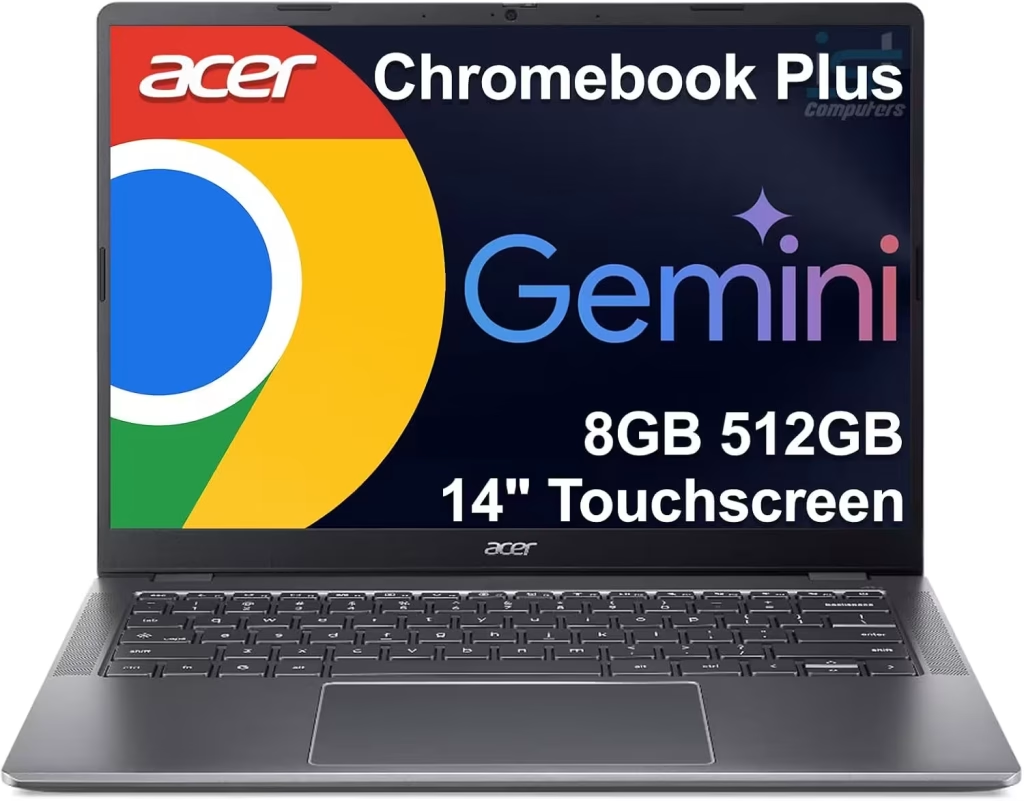
The Acer Chromebook Plus 514 offers the most balanced configuration in this group. It includes an Intel Core i3-N305 processor, 8GB of LPDDR5 memory and a spacious 512GB drive. Its 14-inch IPS touchscreen has a 1920 × 1080 resolution, while the 1080p webcam and relatively low weight make it a strong option for school, work and everyday use.
- Processor: Intel Core i3-N305
- RAM: 8GB LPDDR5
- Storage: 512GB
- Display: 14-inch IPS touchscreen, 1920 × 1080
- Weight: 3.15 lbs
- Wireless: Wi-Fi 6E, Bluetooth 5.1
- Battery: 50Wh
Pros
- Largest storage capacity in the comparison
- Full HD IPS touchscreen
- Capable Intel Core i3-N305 processor
- 1080p webcam
- Good port selection with SD card reader
Cons
- No full-size HDMI port listed
- Integrated graphics are not intended for demanding gaming
2. ASUS Chromebook Plus CX34 CX3402CBA-DH386-WH — Best for Everyday Performance
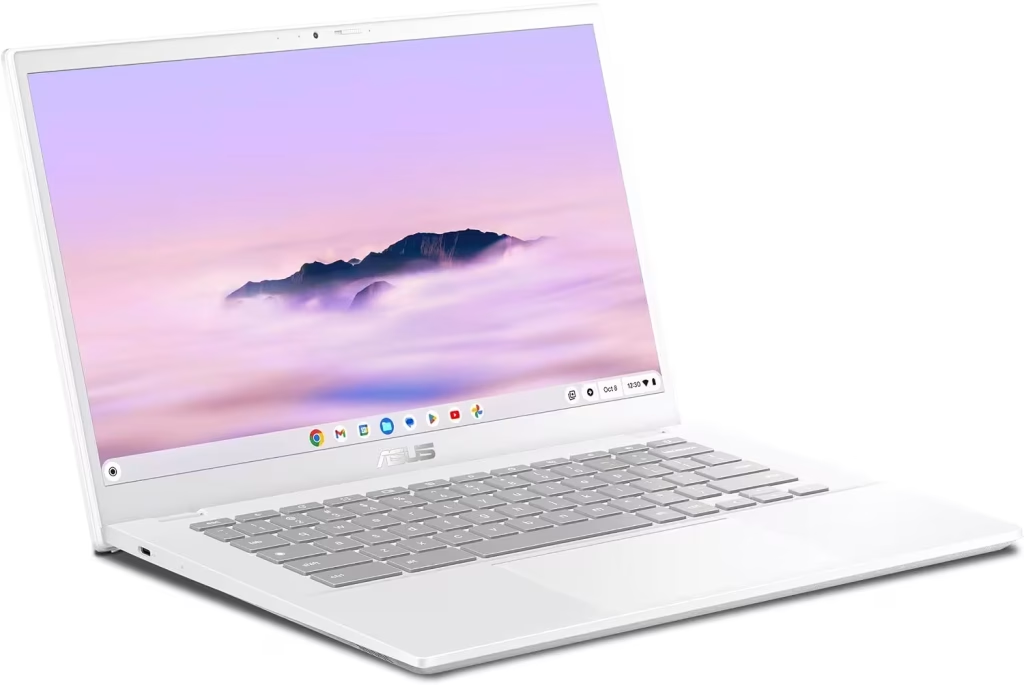
The ASUS Chromebook Plus CX34 uses an Intel Core i3-1215U processor and is a strong fit for users who regularly keep several browser tabs and web applications open. Its 256GB of storage is generous for a Chromebook, and the Full HD display provides sharp text and video. It also offers excellent connectivity with two USB-A ports, two USB-C ports and HDMI.
- Processor: Intel Core i3-1215U
- RAM: 8GB LPDDR5
- Storage: 256GB
- Display: 14-inch, 1920 × 1080
- Weight: 3.17 lbs
- Wireless: Wi-Fi 6, Bluetooth 5.3
- Battery: 50Wh
Pros
- Strong Intel Core i3-1215U processor
- Full HD display
- 256GB of storage
- Full-size HDMI output
- Two USB-A and two USB-C ports
Cons
- Display is not listed as touch-enabled
- Less storage than the Acer Chromebook Plus 514
3. HP Chromebook 14 14a-nf0099nr — Best for Basic Everyday Use
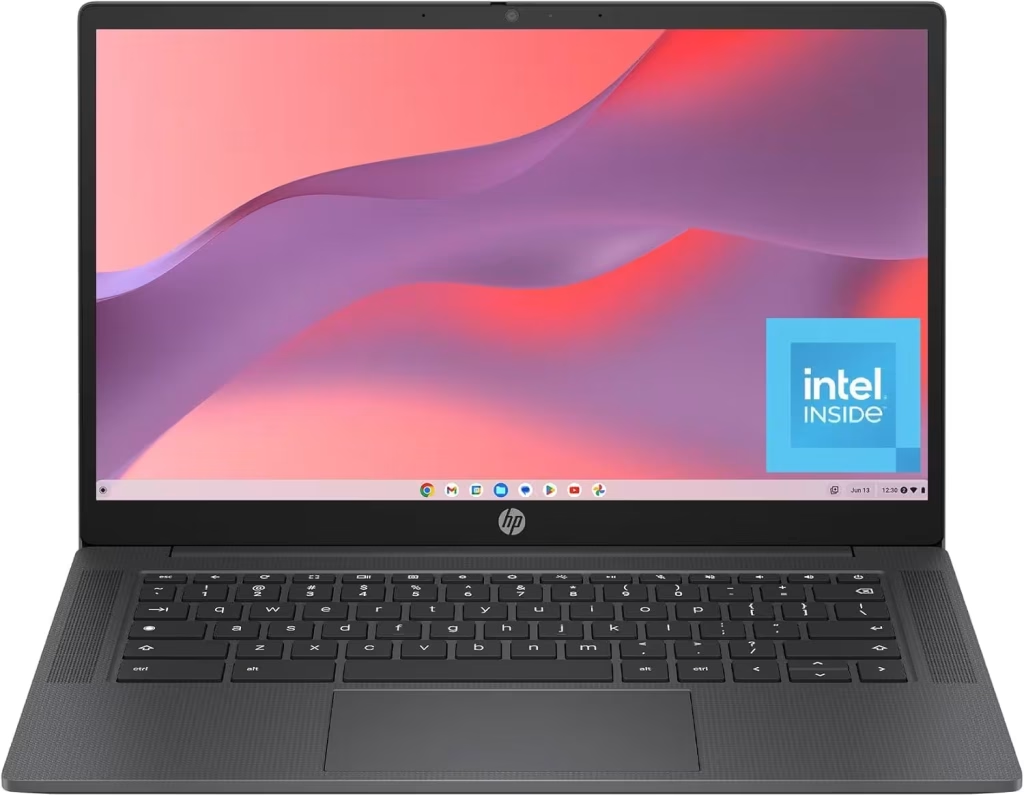
The HP Chromebook 14 is a straightforward option for web browsing, email, streaming, online classes and light document work. It includes an Intel Processor N100, 8GB of DDR5 memory and 128GB of storage. The main compromise is its lower-resolution 1366 × 768 display and more limited port selection.
- Processor: Intel Processor N100
- RAM: 8GB DDR5
- Storage: 128GB
- Display: 14-inch, 1366 × 768
- Weight: 3.2 lbs
- Wireless: Wi-Fi 6E
- Battery: Not listed
Pros
- 8GB of DDR5 memory
- Wi-Fi 6E support
- Portable 3.2-pound design
- Suitable for basic browsing and schoolwork
Cons
- Lower 1366 × 768 display resolution
- Only 128GB of storage
- Limited port selection
4. ASUS Chromebook Flip CX1 CX1400FKA-AS88FT — Best for Touchscreen Versatility
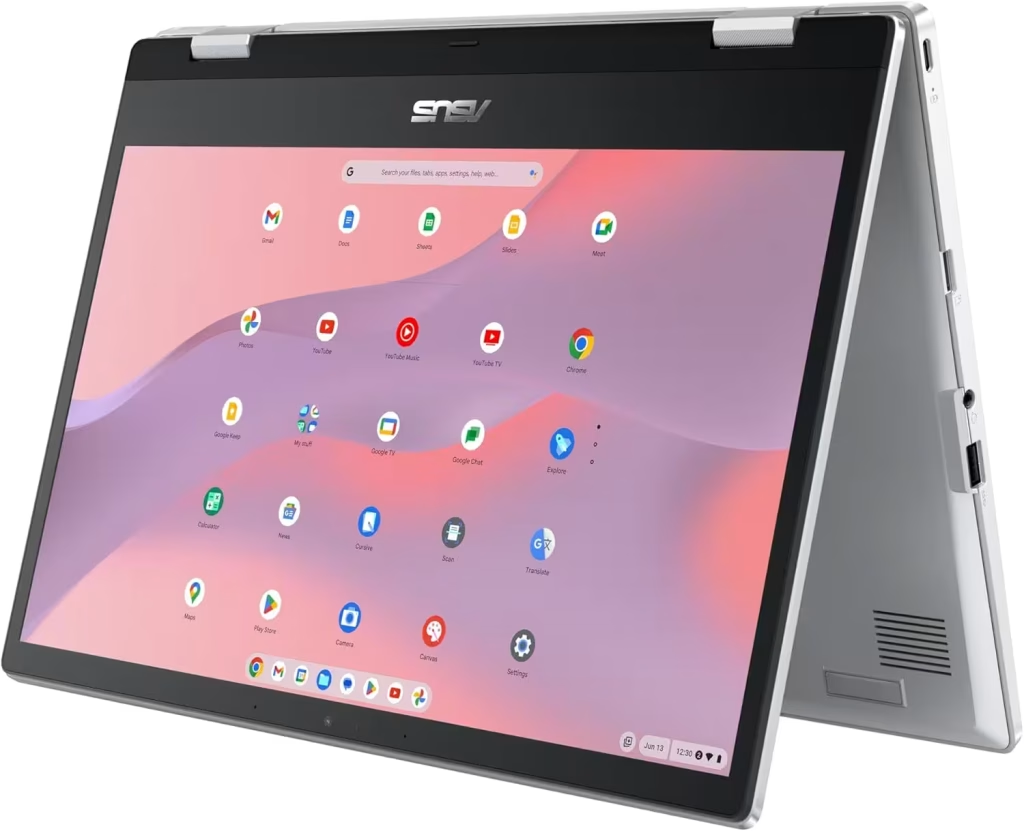
The ASUS Chromebook Flip CX1 is the most flexible entry-level model in this comparison. Its 14-inch Full HD touchscreen is useful for Android applications, browsing, presentations and media consumption. The Intel Celeron N4500 processor is best suited to light everyday tasks rather than heavy multitasking.
- Processor: Intel Celeron N4500
- RAM: 8GB DDR4
- Storage: 128GB
- Display: 14-inch touchscreen, 1920 × 1080
- Weight: 3.6 lbs
- Wireless: Wi-Fi 6, Bluetooth 5.2
- Battery: 50Wh
Pros
- 14-inch Full HD touchscreen
- Flexible convertible design
- Two USB-A and two USB-C ports
- MicroSD card reader
- Wi-Fi 6 and Bluetooth 5.2
Cons
- Intel Celeron N4500 offers basic performance
- Only 128GB of storage
- Uses older DDR4 memory
- Heaviest laptop in the comparison
Some links on this page are affiliate links. LaptopStats may earn a commission from qualifying purchases at no additional cost to you. Prices and availability may change after publication.
Chromebook Comparison
| Specification | Acer Chromebook Plus 514 | ASUS Chromebook Plus CX34 | HP Chromebook 14 | ASUS Chromebook Flip CX1 |
|---|---|---|---|---|
| Best for | Best Overall | Best for Everyday Performance | Best for Basic Everyday Use | Best for Touchscreen Versatility |
| Processor | Intel Core i3-N305 | Intel Core i3-1215U | Intel Processor N100 | Intel Celeron N4500 |
| RAM | 8GB LPDDR5 | 8GB LPDDR5 | 8GB DDR5 | 8GB DDR4 |
| Storage | 512GB | 256GB | 128GB | 128GB |
| Display | 14-inch IPS touchscreen, 1920 × 1080 | 14-inch, 1920 × 1080 | 14-inch, 1366 × 768 | 14-inch touchscreen, 1920 × 1080 |
| Weight | 3.15 lbs | 3.17 lbs | 3.2 lbs | 3.6 lbs |
Also you can see full side-by-side comparison here.
Which Laptop Should You Choose?
Choose the Acer Chromebook Plus 514 for the best overall balance of storage, display quality and portability. Choose the ASUS Chromebook Plus CX34 if processor performance and HDMI connectivity are more important than touchscreen support. The HP Chromebook 14 is suitable for basic web browsing and schoolwork, while the ASUS Chromebook Flip CX1 is the better choice for users who want a touchscreen and convertible design.
Final Verdict
The Acer Chromebook Plus 514 is the strongest overall laptop in this four-model comparison. It has the most storage, the lowest listed weight, a Full HD IPS touchscreen and a capable processor for everyday ChromeOS use. The ASUS Chromebook Plus CX34 is the closest alternative and may be preferable for users who need HDMI connectivity or want the Intel Core i3-1215U processor. The HP Chromebook 14 and ASUS Chromebook Flip CX1 are more basic choices, with the HP better suited to simple everyday use and the ASUS Flip CX1 offering more touchscreen flexibility.
Frequently Asked Questions
Which of these Chromebooks has the most storage?
The Acer Chromebook Plus 514 has 512GB of storage. The ASUS Chromebook Plus CX34 has 256GB, while the HP Chromebook 14 and ASUS Chromebook Flip CX1 each have 128GB.
Which models have a touchscreen?
The Acer Chromebook Plus 514 and ASUS Chromebook Flip CX1 are listed with touchscreens. The ASUS Chromebook Plus CX34 and HP Chromebook 14 are not listed as touchscreen models.
Which Chromebook is the lightest?
The Acer Chromebook Plus 514 is the lightest at 3.15 pounds. The ASUS Chromebook Plus CX34 weighs 3.17 pounds, the HP Chromebook 14 weighs 3.2 pounds and the ASUS Chromebook Flip CX1 weighs 3.6 pounds.
Are these Chromebooks suitable for gaming?
These models are designed mainly for browsing, streaming, schoolwork and everyday productivity. Their integrated graphics can handle casual browser and Android games, but they are not intended for demanding PC gaming.
Choosing a student laptop in 2026 can be confusing. There are budget laptops, gaming laptops, Chromebooks, MacBooks, AI laptops, 2-in-1 laptops, and dozens of processor names that sound almost the same.
The good news is that most students do not need the most expensive laptop. What matters is choosing the right balance of performance, battery life, portability, storage, and display quality.
This guide explains the best laptop specs for students in 2026 in simple terms, so you can avoid overpaying for features you do not need — or buying a laptop that feels slow after one semester.
You can also browse current models in the LaptopStats laptop catalog, use the LaptopStats laptop picker, or compare models side by side with the LaptopStats laptop comparison tool.
Quick Answer: Best Laptop Specs for Students in 2026
For most students, a good laptop in 2026 should have:
- Processor: Intel Core Ultra 5 / Core i5, AMD Ryzen 5 / Ryzen AI 5, Apple M-series, or Snapdragon X-series
- RAM: 16GB recommended
- Storage: 512GB SSD recommended
- Display: 13-inch to 15.6-inch Full HD or better
- Battery life: 8 to 12+ hours
- Weight: Under 4 lbs if carrying it daily
- Webcam: 1080p preferred
- Wi-Fi: Wi-Fi 6 or newer
- Ports: USB-C, USB-A if possible, HDMI if needed
A laptop with 16GB RAM and a 512GB SSD is the safest choice for most college and university students in 2026. Some basic school users can still manage with 8GB RAM and 256GB storage
Processor: What CPU Should a Student Laptop Have?
The processor, or CPU, controls how fast your laptop handles everyday tasks like browsing, writing papers, joining video calls, opening spreadsheets, and running school software.
For most students, you do not need the most powerful processor. A modern mid-range chip is usually enough.
Good student laptop processors in 2026 include:
- Intel Core i5
- Intel Core Ultra 5
- Intel Core Ultra 7
- AMD Ryzen 5
- AMD Ryzen 7
- AMD Ryzen AI 5
- AMD Ryzen AI 7
- Apple M2, M3, M4, or newer
- Snapdragon X Plus or Snapdragon X Elite
For general schoolwork, an Intel Core i5/Core Ultra 5 or AMD Ryzen 5/Ryzen AI 5 is usually enough. For engineering, programming, design, architecture, or video editing, consider a stronger processor like an Intel Core Ultra 7, AMD Ryzen 7, Ryzen AI 7, or Apple M-series chip.
If you are looking at AI laptops, check whether the laptop includes an NPU. You can learn more in our guide: What Is an NPU in a Laptop?
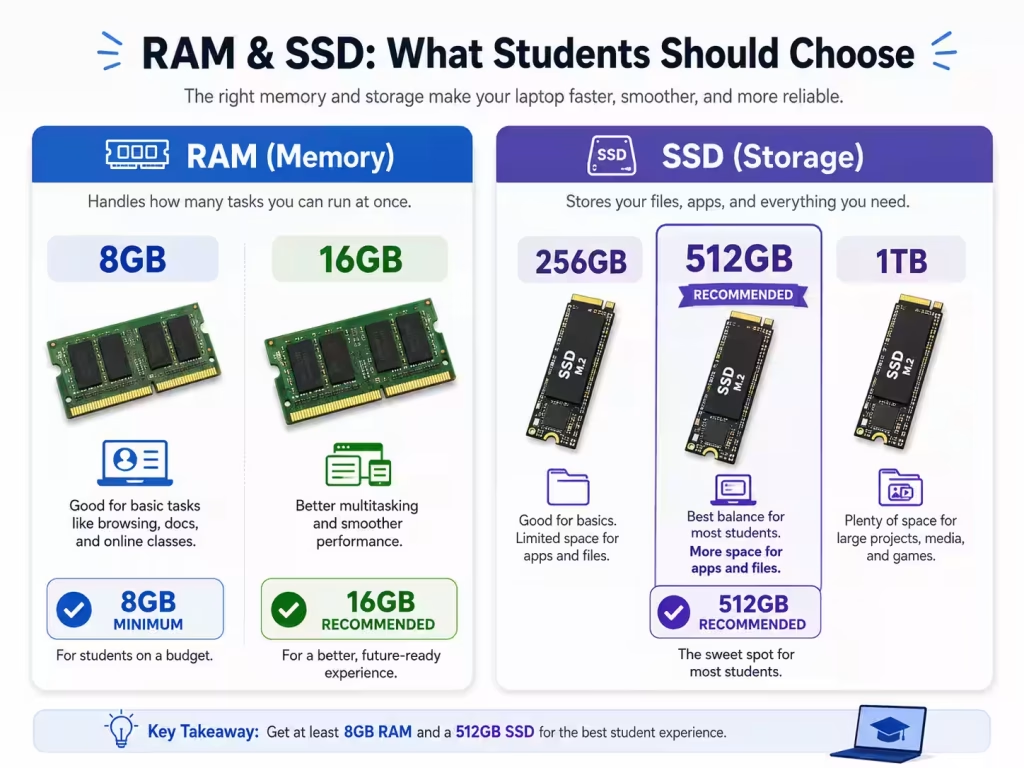
RAM: Is 8GB Enough for Students in 2026?
RAM affects how many apps, browser tabs, documents, and background tasks your laptop can handle at the same time.
In 2026, 16GB RAM is the best choice for most students.
RAM recommendations for students:
| Student Type | Recommended RAM |
|---|---|
| Basic schoolwork, email, Google Docs | 8GB minimum |
| College, university, multitasking | 16GB recommended |
| Programming, design, engineering | 16GB to 32GB |
| Video editing, 3D work, heavy creative apps | 32GB or more |
An 8GB laptop can still work for light use, especially if it is a Chromebook or a basic Windows laptop. However, if you plan to keep the laptop for several years, 16GB is a much better long-term choice.
Students often keep many browser tabs open while running Word, Excel, Zoom, Teams, Spotify, PDFs, and research tools. That is where 16GB RAM makes a real difference.
Storage: 256GB vs 512GB vs 1TB SSD
Storage is where your files, apps, downloads, photos, videos, and school projects are saved.
For students in 2026, 512GB SSD is the best balance.
Storage recommendations:
| Storage Size | Best For |
| 128GB | Too limited for most students |
| 256GB | Basic schoolwork and cloud storage users |
| 512GB | Best choice for most students |
| 1TB | Best for creative work, large files, games, and long-term use |
A 256GB SSD can work if you mostly use Google Drive, OneDrive, iCloud, or school cloud storage. But after installing apps, updates, downloads, and offline files, 256GB can fill up quickly.
A 512GB SSD gives students more breathing room without making the laptop too expensive. If you work with video files, design software, games, or large engineering programs, consider 1TB.
Display: What Screen Size Is Best for Students?
The best laptop screen size depends on how you use the laptop.
Best display sizes for students:
| Display Size | Best For |
| 13-inch | Maximum portability |
| 14-inch | Best balance for most students |
| 15.6-inch | Larger screen for multitasking |
| 16-inch+ | Creative work, design, engineering, gaming |
For most students, a 14-inch laptop is the sweet spot. It is large enough for writing, research, and video calls, but still easy to carry around campus.
A 15.6-inch laptop gives you more screen space, but it is usually heavier. A 13-inch laptop is easier to carry, but the smaller screen may feel cramped when working with documents and browser tabs side by side.
At minimum, look for a screen resolution 1920 x 1080. Higher-resolution screens can look sharper, but they may cost more and sometimes use more battery.
If you are choosing between OLED and LCD, read our full guide here: OLED vs LCD Laptop Displays: Which Screen Is Better for You?
Battery Life: How Much Is Enough?
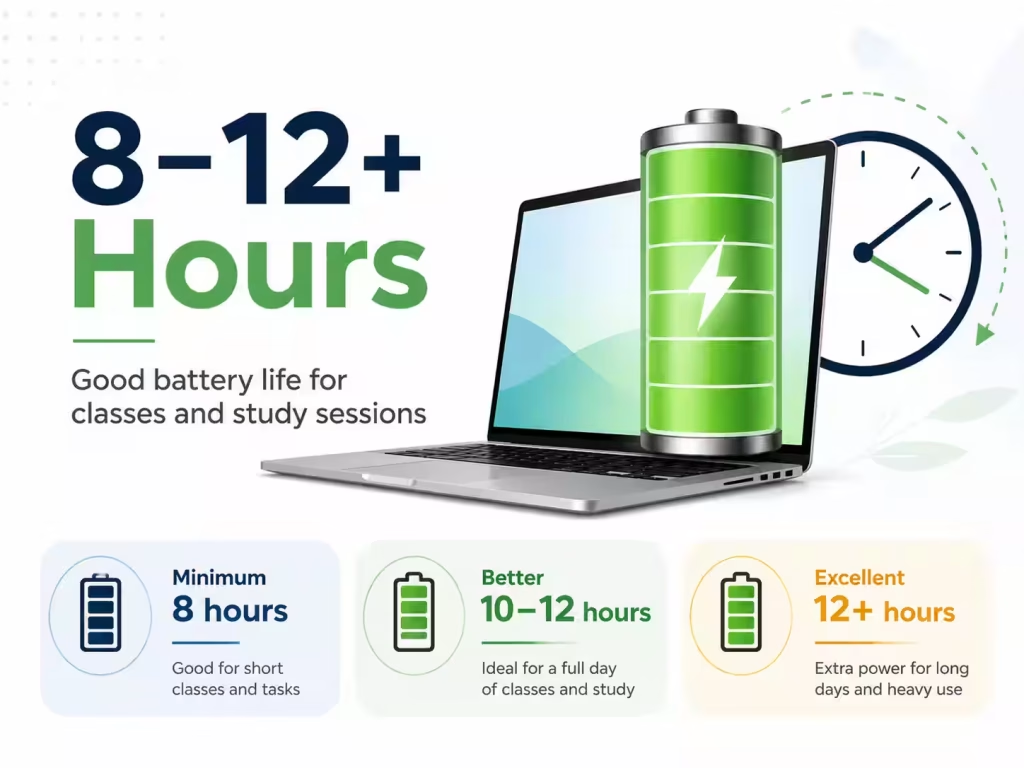
Battery life is one of the most important specs for students.
A good student laptop should last through classes, study sessions, and library work without needing to stay plugged in all day.
Battery life recommendation:
- Minimum: 8 hours
- Better: 10 to 12 hours
- Excellent: 12+ hours
Battery life depends on screen brightness, apps, video calls, Wi-Fi, and background tasks. Manufacturer claims are often based on light usage, so real-world battery life may be lower.
If you are on campus all day, battery life should be a higher priority than gaming performance or flashy features.
Weight: Choose a Laptop You Can Carry Every Day
A powerful laptop is not useful if you hate carrying it.
For students, weight matters because the laptop will often sit in a backpack with books, chargers, notebooks, and other items.
Weight recommendations:
| Laptop Weight | Student Experience |
| Under 3 lbs | Very portable |
| 3 to 4 lbs | Good for most students |
| 4 to 5 lbs | Noticeable in a backpack |
| Over 5 lbs | Better for desk use than daily carrying |
For most students, try to stay under 4 lbs. Gaming laptops and workstation laptops can be much heavier, and they often have larger chargers too.
Graphics: Do Students Need a Dedicated GPU?
Most students do not need a dedicated graphics card.
Integrated graphics are enough for:
- Web browsing
- Microsoft Office
- Google Docs
- Video streaming
- Online classes
- Light photo editing
- Basic coding
- Presentations
A dedicated GPU is useful for:
- Gaming
- 3D modeling
- CAD software
- Video editing
- Animation
- Architecture
- Some engineering programs
- AI and machine learning workloads
If you are a business, education, nursing, writing, or general college student, integrated graphics are usually fine. If you are studying engineering, architecture, game design, media production, or 3D design, consider a laptop with NVIDIA GeForce RTX or a strong integrated GPU.
NPU and AI Features: Are They Important for Students?
Many 2026 laptops advertise AI features. These laptops may include an NPU, which stands for Neural Processing Unit.
An NPU can help with certain AI tasks, especially features like background blur, noise reduction, live captions, image tools, and future AI apps.
However, an NPU should not be the only reason you buy a laptop. For students, the basics still matter more:
- Good battery life
- Enough RAM
- Enough storage
- Comfortable keyboard
- Clear display
- Reliable performance
If two laptops are similar in price, choosing the one with a stronger AI processor or NPU may help it feel more future-ready. But do not sacrifice RAM, storage, or build quality just to get an AI label.
You can browse AI-ready models in the LaptopStats laptop catalog.
Webcam, Microphone, and Keyboard
Students use laptops for more than writing papers. Online classes, group projects, video calls, and remote meetings are now common.
Look for:
- 1080p webcam if possible
- Good microphone quality
- Comfortable keyboard
- Backlit keyboard
- Large trackpad
- Physical webcam shutter if privacy matters
A backlit keyboard is especially useful for dorm rooms, libraries, evening study sessions, and travel.
Ports and Connectivity
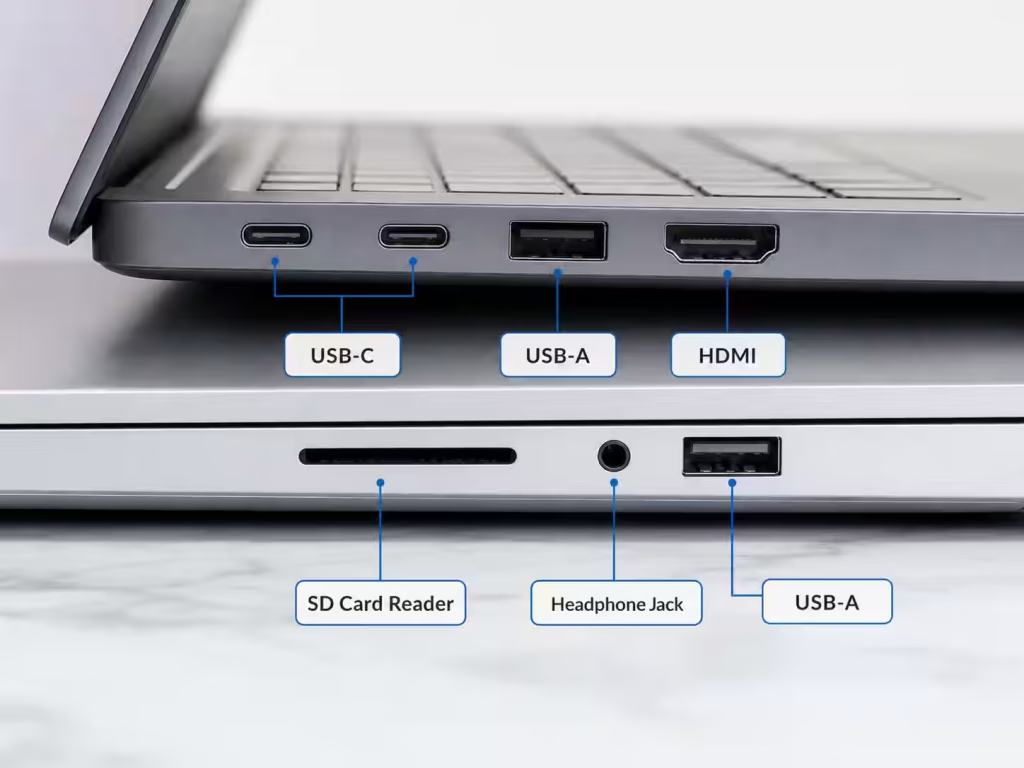
Ports are easy to ignore until you need them.
A good student laptop should have at least one USB-C port. It is even better if it supports charging through USB-C.
Useful ports include:
- USB-C
- USB-A
- HDMI
- Headphone jack
- SD card reader
- Thunderbolt or USB4 on premium laptops
If the laptop has only USB-C ports, you may need a dongle or adapter for older accessories.
For wireless connectivity, look for Wi-Fi 6 or newer. This helps with faster and more stable internet connections in dorms, classrooms, libraries, and shared spaces.
Best Laptop Specs by Student Type
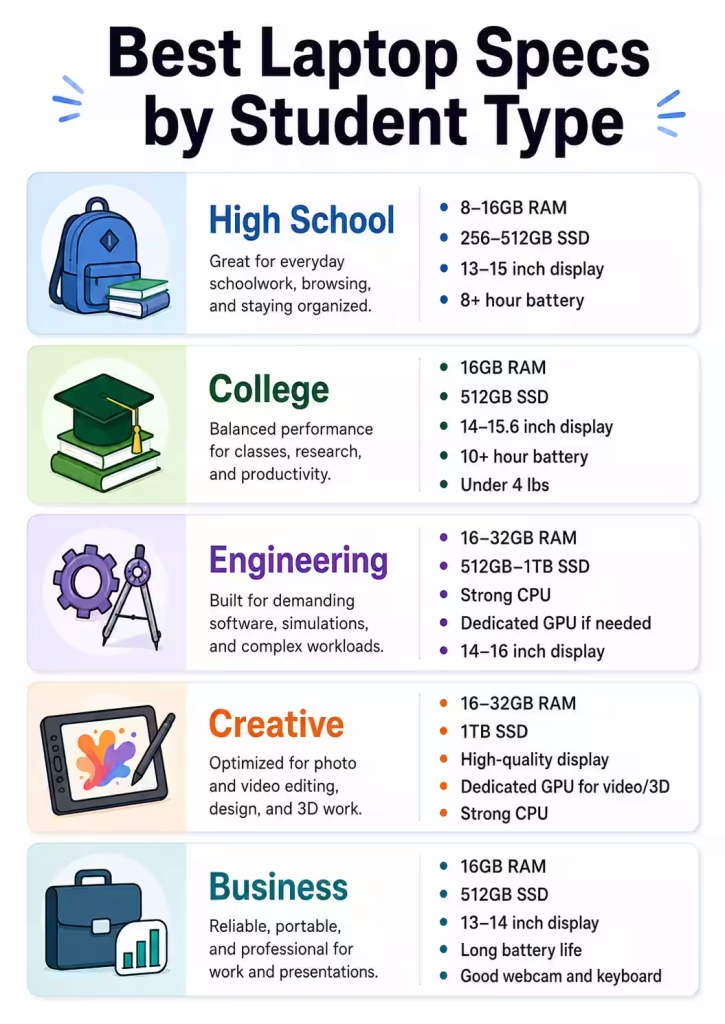
Best Specs for High School Students
High school students usually need a laptop for web browsing, writing, online assignments, video calls, and streaming.
Recommended specs:
- Intel Core i3/i5, AMD Ryzen 3/5, Apple M-series, or Chromebook processor
- 8GB to 16GB RAM
- 256GB to 512GB SSD
- 13-inch to 15-inch display
- 8+ hours battery life
- Lightweight design
Best Specs for College Students
College students should aim for a laptop that can last several years.
Recommended specs:
- Intel Core Ultra 5, Intel Core i5, AMD Ryzen 5, Ryzen AI 5, Apple M-series, or Snapdragon X-series
- 16GB RAM
- 512GB SSD
- 14-inch or 15.6-inch display
- 10+ hours battery life
- Under 4 lbs if possible
Best Specs for Engineering Students
Engineering students may need more performance, especially for CAD, simulations, coding, or technical software.
Recommended specs:
- Intel Core Ultra 7, AMD Ryzen 7, Ryzen AI 7, or better
- 16GB to 32GB RAM
- 512GB to 1TB SSD
- Dedicated GPU if required by your program
- 14-inch to 16-inch display
Best Specs for Creative Students
Creative students working with video, photography, design, or animation need stronger hardware.
Recommended specs:
- Intel Core Ultra 7, AMD Ryzen 7, Apple M-series Pro-level chip, or better
- 16GB to 32GB RAM
- 1TB SSD if working with large files
- OLED or high-quality IPS display
- Dedicated GPU for video editing, 3D, or animation
Best Specs for Business Students
Business students usually need portability, battery life, and multitasking performance.
Recommended specs:
- Intel Core Ultra 5, AMD Ryzen 5, Apple M-series, or Snapdragon X-series
- 16GB RAM
- 512GB SSD
- 13-inch or 14-inch display
- Long battery life
- Good webcam and keyboard
Chromebook, Windows Laptop, or MacBook?
Choose a Chromebook if:
- You mostly use Google Docs, Gmail, Chrome, and web apps
- You want something affordable
- Your school supports ChromeOS
- You do not need Windows-only software
Choose a Windows laptop if:
- You want the widest software compatibility
- You need Microsoft Office, engineering tools, or business apps
- You want more choices at different prices
- You may need gaming or dedicated graphics
Choose a MacBook if:
- You prefer macOS
- You want strong battery life and build quality
- You use Apple devices already
- Your school software works on macOS
Before buying, check your school or college program requirements. Some majors require Windows-only applications, while others work perfectly with macOS or ChromeOS.
What Specs Should Students Avoid?
Try to avoid laptops with:
- 4GB RAM
- 64GB or 128GB storage
- Older hard drives instead of SSDs
- Low-resolution displays below Full HD
- Very heavy designs for daily campus use
- Weak battery life
- Unknown or outdated processors
- No USB-C port
A very cheap laptop can look like a good deal, but if it becomes slow quickly, it may cost more in the long run.
Final Buying Tips
Before buying a student laptop, think about how it will actually be used.
A student who only writes papers and uses Google Docs does not need the same laptop as someone studying engineering, design, or video production. The best laptop is not always the most expensive one — it is the one that matches the student’s workload.
Start by looking for 16GB RAM, 512GB SSD, good battery life, and a comfortable size. Then compare processors, displays, weight, and price.
You can browse student-friendly laptops in the LaptopStats laptop catalog, find matching models with the LaptopStats laptop picker, compare your final choices using the LaptopStats compare tool, or check current offers on the LaptopStats laptop deals page.
A good student laptop should feel fast, last through the day, fit in a backpack, and have enough power to handle schoolwork for years – not just the first semester.
Artificial intelligence is becoming one of the biggest laptop trends, and one term you will see more often in laptop specifications is NPU. Newer laptops may list an Intel AI Boost NPU, AMD Ryzen AI NPU, Qualcomm Hexagon NPU, or Apple Neural Engine. But what does that actually mean, and should you care when buying your next laptop?
An NPU, short for Neural Processing Unit, is a specialized processor designed to handle AI and machine learning tasks more efficiently than a traditional CPU. In simple terms, it helps your laptop run certain AI features faster, smoother, and with less battery drain.
That does not mean every laptop buyer needs the most powerful NPU available. For everyday browsing, email, streaming, schoolwork, and office tasks, the CPU, RAM, storage, display, and battery life still matter more. But if you are shopping for a modern AI laptop, especially a Windows Copilot+ PC or a newer MacBook with Apple’s Neural Engine, the NPU is becoming an important spec to understand.
Quick answer: An NPU is a dedicated AI processor inside a laptop. It helps with on-device AI tasks like background blur, live captions, image generation, voice features, noise reduction, and future AI-powered apps.
What Does an NPU Do?
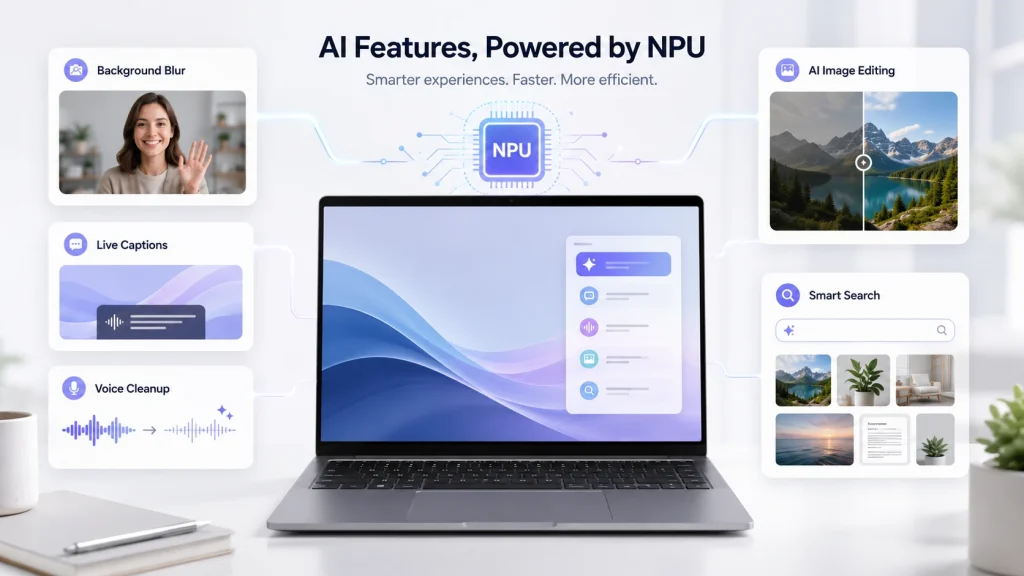
An NPU is built to process AI workloads. These workloads are different from normal tasks like opening a browser tab or saving a file. AI tasks often involve pattern recognition, prediction, language processing, image analysis, and large amounts of matrix math.
For laptop users, that can include features such as:
- Real-time background blur during video calls
- Eye contact correction
- Studio lighting effects
- Voice cleanup and noise cancellation
- Live captions and translation
- AI-powered photo editing
- Local AI assistants
- Smart search inside files and apps
- On-device image generation
- Battery-efficient AI processing
The biggest benefit is that these tasks can run locally on the laptop instead of relying only on cloud servers. That can improve speed, privacy, and battery life, depending on the app.
For example, if your laptop can remove background noise during a video call using the NPU, the CPU and GPU can stay free for other tasks. This can help the laptop feel smoother and may reduce power usage compared with running the same feature entirely through the CPU or GPU.
CPU vs GPU vs NPU: What Is the Difference?
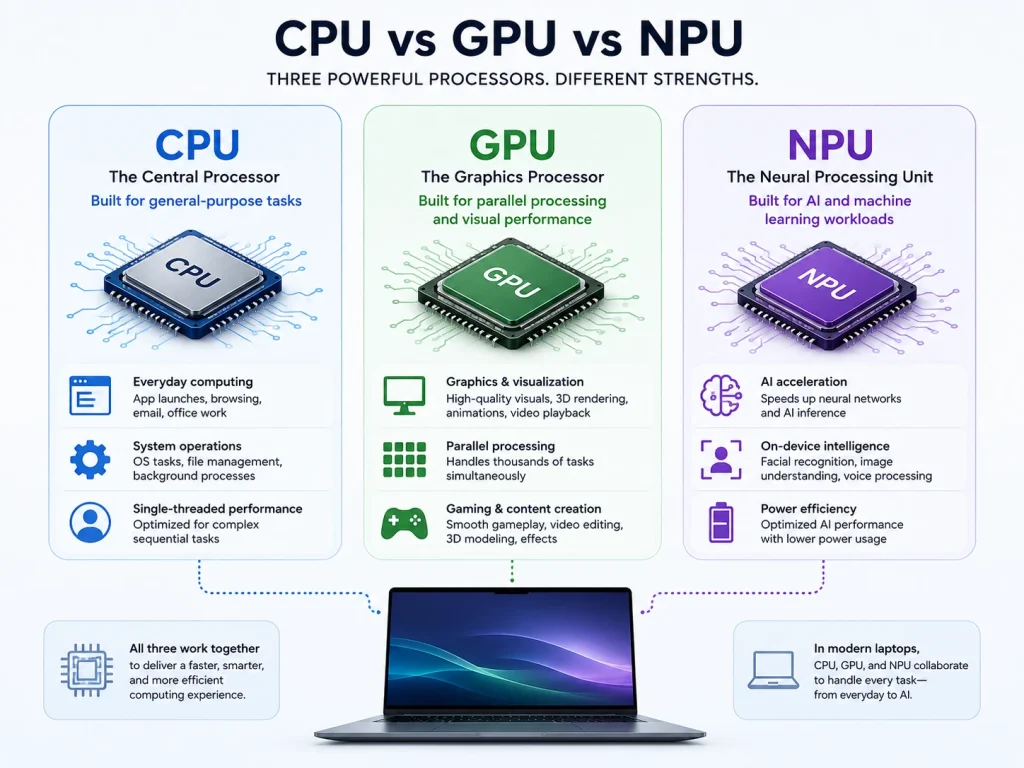
Most laptops already have a CPU and a GPU, so it is fair to ask why they need another processor.
The CPU, or Central Processing Unit, is the main general-purpose processor. It handles everyday computing tasks, operating system work, browser activity, apps, spreadsheets, file management, and many background processes. It is flexible and important for almost everything.
The GPU, or Graphics Processing Unit, is built for graphics and parallel processing. It is especially important for gaming, 3D work, video editing, rendering, and some AI workloads. Dedicated GPUs, such as NVIDIA GeForce RTX graphics, are still much more important than NPUs for gaming and heavy creative work.
The NPU is more specialized. It is designed for AI and neural network tasks. It may not replace the CPU or GPU, but it can make certain AI features more efficient.
| Processor | Best For | Why It Matters |
| CPU | General laptop performance | Controls everyday speed and responsiveness |
| GPU | Graphics, gaming, video, rendering | Important for visual and creative performance |
| NPU | AI features and machine learning tasks | Runs AI workloads more efficiently |
A good way to think about it: the CPU is the all-purpose worker, the GPU is the graphics and parallel-processing powerhouse, and the NPU is the AI-focused assistant.
What Does TOPS Mean for an NPU?
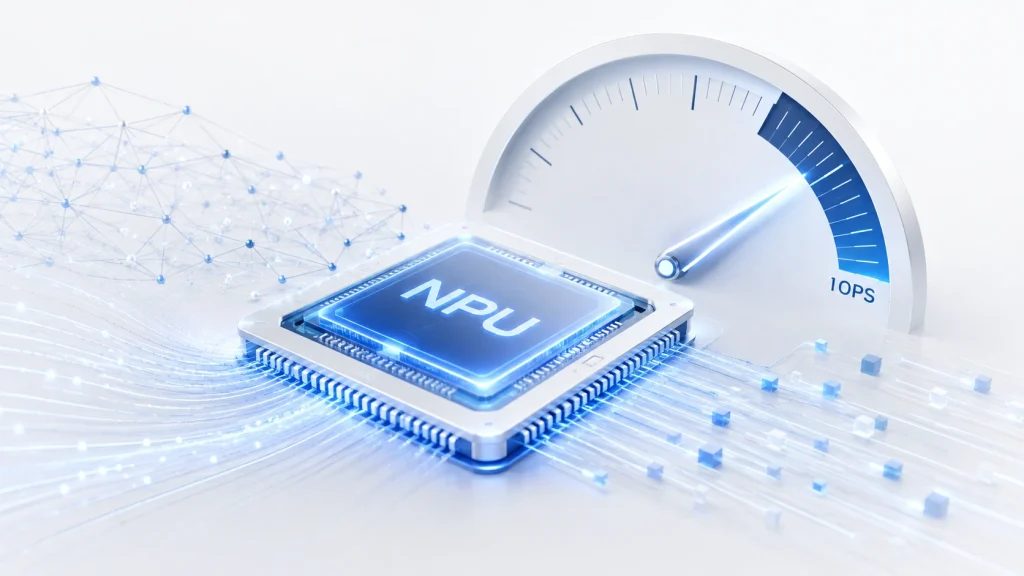
When comparing NPUs, you may see the term TOPS, which stands for trillions of operations per second. It is a performance measurement used to describe how many AI-related operations a processor can theoretically perform.
For modern AI laptops, TOPS has become one of the most visible NPU specs. Microsoft’s Copilot+ PC requirements include an NPU capable of 40+ TOPS, along with at least 16GB of RAM and 256GB of storage. That is why many newer laptop processors are advertised around this number.
For example, Qualcomm lists the Snapdragon X Elite as having an NPU with up to 45 TOPS of AI performance. Microsoft also lists compatible Copilot+ PC processor families such as AMD Ryzen AI 300/400, Intel Core Ultra 200V/300V, and Snapdragon X series.
However, TOPS should not be the only spec you look at. Just like CPU clock speed does not tell the whole story, NPU TOPS does not guarantee that every AI app will run perfectly. Software support, drivers, memory, thermals, and app optimization all matter.
Buying tip: If you specifically want a Windows Copilot+ PC, look for a laptop with a 40+ TOPS NPU, 16GB RAM, and at least 256GB storage.
Do You Need an NPU in a Laptop?
For many buyers, the honest answer is: not always.
If you mostly use your laptop for web browsing, email, video streaming, basic schoolwork, and Microsoft Office, you do not need to prioritize the NPU above everything else. A laptop with a strong CPU, enough RAM, a good SSD, and a quality display will still be the better choice.
You should care more about the NPU if you want:
- A Windows Copilot+ PC
- Better on-device AI features
- AI-assisted productivity tools
- Local AI processing instead of cloud-only features
- Better video call effects with less battery drain
- A more future-ready laptop
- AI creative tools for photos, audio, and video
The NPU is also more important if you plan to keep your laptop for several years. AI features are likely to become more common in Windows, macOS, and third-party apps. A laptop with a capable NPU may age better as more software begins to use local AI acceleration.
Which Laptop Processors Have NPUs?
Many newer processors now include some type of NPU or AI accelerator. The naming depends on the brand. The naming depends on the brand, but the purpose is similar: to help the laptop handle AI-related tasks more efficiently.
Intel Laptops
Newer Intel Core Ultra processors may include an NPU, often referred to as Intel AI Boost. These chips combine CPU, GPU, and NPU resources to support AI workloads such as background blur, noise reduction, smart search, and other on-device AI features.
Browse Intel laptops with an NPU to compare models with Intel processors
AMD Laptops
AMD uses Ryzen AI branding for processors with dedicated AI hardware. Newer Ryzen AI chips are designed for modern AI PCs and can help with local AI features, creative tools, video-call effects, and future AI-powered apps.
Browse AMD laptops with an NPU to compare Ryzen-based models
Qualcomm Snapdragon Laptops
Qualcomm Snapdragon laptop processors use a dedicated Hexagon NPU. Snapdragon-based laptops often focus on portability, battery life, quiet performance, and on-device AI features, making them common in thin and light AI laptop designs.
Browse Qualcomm Snapdragon laptops with an NPU to compare models
Apple MacBooks
Apple Silicon chips include a dedicated Neural Engine, which is Apple’s version of an NPU. It helps accelerate machine learning tasks across macOS, including photo processing, speech features, smart suggestions, and other AI-assisted workflows.
Browse Apple laptops with a Neural Engine to compare MacBook models
NPU Performance vs Real Laptop Performance
It is easy to get caught up in AI marketing, but an NPU is only one part of the full laptop experience.
A laptop with a strong NPU but limited RAM may still struggle with heavy multitasking. A laptop with a good NPU but weak graphics may not be ideal for gaming. A laptop with great AI performance but a low-quality display may not be the best choice for creative work.
When comparing laptops, look at the full spec sheet:
- Processor model
- NPU type and TOPS rating
- RAM capacity
- SSD storage
- Display resolution and panel type
- Battery size
- Weight
- Ports
- Graphics performance
- Operating system
- Price
For example, a lightweight AI laptop may be excellent for students, travel, and productivity, while a gaming laptop with a dedicated GPU may still be better for demanding graphics workloads, even if its NPU is weaker.
Should You Buy an AI Laptop Now?
If you are buying a premium laptop in 2026, it makes sense to consider one with a capable NPU. AI features are becoming more common, and laptops with stronger NPUs are more likely to support future on-device AI tools.
For Windows buyers, a Copilot+ PC-class laptop is worth considering if you want the latest AI features and longer-term software support. For Mac buyers, Apple’s Neural Engine is already part of the Apple Silicon ecosystem, so the question is less about whether the laptop has an NPU and more about which chip, RAM, and storage configuration fits your needs.
That said, budget buyers should not overpay just for the word “AI” in the product name. If a cheaper laptop has better RAM, storage, display quality, or battery life, it may still be the better everyday choice.
Final Thoughts
An NPU is one of the most important new laptop specs to understand, especially as AI features become more common in Windows and macOS. It is a dedicated processor for AI tasks, helping laptops run features like live captions, background blur, voice cleanup, smart search, and local AI tools more efficiently.
But the NPU should not be viewed in isolation. For most people, the best laptop is still the one with the right balance of CPU performance, RAM, storage, battery life, display quality, and price. A strong NPU is a bonus today and may become more important over time.
You can also browse all laptops with an NPU if you want to compare AI-ready laptops across all processor brands.