
When choosing a laptop, one of the critical decisions you’ll face is selecting the type of display technology: OLED (Organic Light Emitting Diode) or LCD (Liquid Crystal Display). Each has its own set of advantages and considerations, impacting factors such as image quality, power consumption, and cost. This article explores the differences between OLED and LCD screens to help you decide which is better suited for your laptop needs.
Understanding OLED Screens
Pros of OLED Screens:
- Image Quality: OLED screens typically offer superior image quality compared to LCDs. They provide deeper blacks, higher contrast ratios, and vibrant colors due to each pixel emitting its own light.
- Wide Viewing Angles: OLED screens maintain color accuracy and brightness even when viewed from sharp angles, making them ideal for sharing content or multimedia consumption.
- Fast Response Time: OLED screens have faster response times than LCDs, reducing motion blur during fast-paced scenes in videos or games.
- Energy Efficiency: OLEDs are more power-efficient than LCDs because they do not require a backlight. Black pixels consume zero power, contributing to longer battery life when displaying dark content.
Cons of OLED Screens:
- Cost: OLED screens are generally more expensive to manufacture than LCDs, which can drive up the overall cost of laptops equipped with OLED displays.
- Burn-in Risk: OLED screens are susceptible to burn-in, where persistent images or icons may leave a faint ghost image on the screen over time. However, modern OLED panels have implemented technologies to mitigate this issue.
- Brightness Limitations: OLED screens may not achieve the same peak brightness levels as some high-end LCDs, which can affect visibility in very bright environments.
Understanding LCD Screens
Pros of LCD Screens:
- Cost: LCD screens are typically more affordable than OLEDs, making laptops with LCD displays more budget-friendly.
- Brightness: LCDs can achieve higher peak brightness levels compared to OLEDs, which is beneficial for outdoor use or well-lit environments.
- Variety: LCDs come in various types, such as IPS (In-Plane Switching), TN (Twisted Nematic), and VA (Vertical Alignment), each offering different strengths in color accuracy, response time, and viewing angles.
- No Burn-in Risk: Unlike OLEDs, LCDs do not suffer from burn-in issues, making them more suitable for applications where static images are displayed for extended periods.
Cons of LCD Screens:
- Contrast Ratio: LCDs typically have lower contrast ratios compared to OLEDs, resulting in blacks that appear less deep and vibrant.
- Viewing Angles: While IPS LCDs offer good viewing angles, other types like TN panels may suffer from color shifting when viewed off-center.
- Power Consumption: LCDs require a backlight to illuminate the display, leading to higher power consumption compared to OLEDs, especially when displaying bright content.
Which is Better for Laptops: OLED or LCD?
1. Content Consumption and Multimedia: If you prioritize stunning visuals, vibrant colors, and deep blacks for watching movies, editing photos, or gaming, OLED screens provide an immersive experience with superior image quality.
2. Productivity and Budget: For general productivity tasks, web browsing, and budget considerations, LCD screens offer a cost-effective solution with good overall performance and versatility.
3. Battery Life: OLED screens can contribute to longer battery life when displaying content with dark backgrounds due to their energy-efficient nature. However, LCDs with efficient backlight management can also optimize battery usage.
4. Durability and Longevity: LCD screens are generally more robust against burn-in and may have longer lifespans compared to OLEDs in terms of maintaining consistent image quality over time.
Conclusion
Choosing between OLED and LCD screens for your laptop ultimately depends on your specific needs, preferences, and budget. OLED screens excel in image quality, viewing angles, and energy efficiency but come at a higher cost and may have limitations in brightness and potential burn-in issues. LCD screens offer affordability, versatility across different types, and higher brightness levels but may sacrifice in contrast ratio and energy efficiency.
When shopping for a laptop, consider how you primarily use your device—whether for content consumption, productivity, gaming, or professional tasks—and weigh the pros and cons of each display technology accordingly. By understanding these differences, you can make an informed decision that enhances your overall laptop experience based on your priorities for visual quality, performance, and long-term usability.
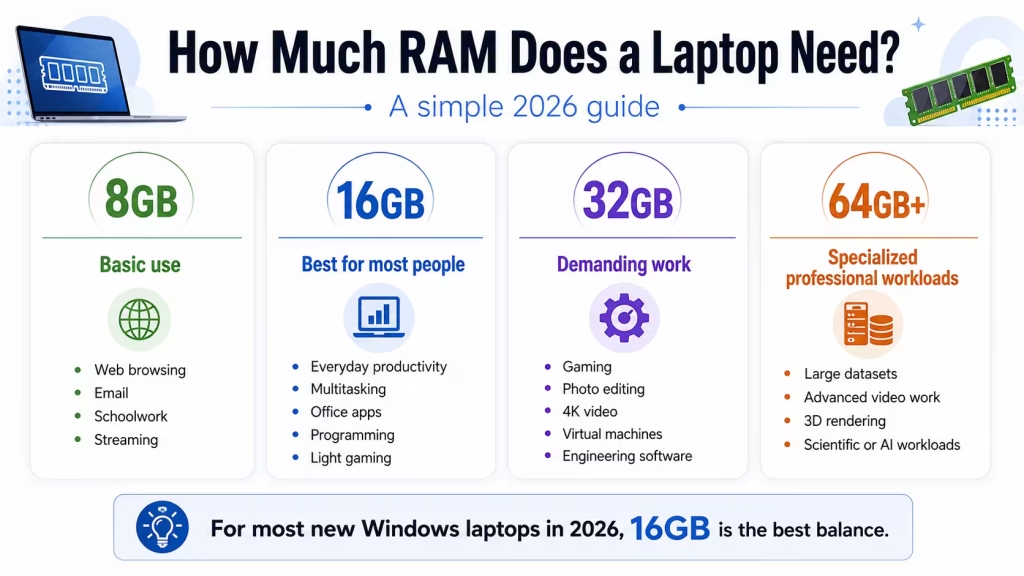
The amount of RAM a laptop needs depends on what you plan to do with it. For basic browsing and schoolwork, 8GB may still be enough. For most people buying a new Windows laptop in 2026, 16GB is the best overall choice. Gaming, video editing, engineering software, and other demanding workloads may require 32GB or more. RAM—short for random access memory—temporarily holds the information your operating system and applications are actively using. More RAM allows a laptop to keep more browser tabs, programs, and files open without slowing down or relying heavily on storage.
Quick recommendation
For most buyers:
| Type of use | Recommended RAM |
|---|---|
| Basic browsing and email | 8GB |
| School and everyday productivity | 8–16GB |
| General Windows laptop | 16GB |
| Heavy multitasking | 16–32GB |
| Gaming | 16GB minimum; 32GB preferred for demanding use |
| Photo editing | 16–32GB |
| Video editing | 16–32GB or more |
| Engineering, virtual machines, large datasets | 32–64GB |
| Basic Chromebook | 8GB |
| Chromebook Plus | 8GB or more |
For most people, 16GB provides the best balance of price, performance, and useful life.
What is RAM?
RAM is the laptop’s short-term working memory.
When you open a browser, document, application, or game, the laptop loads the information it needs into RAM. RAM is much faster to access than the internal storage drive, allowing the processor to work efficiently.
When available RAM becomes full, the operating system may move some data to the SSD. This helps prevent applications from immediately closing, but storage is slower than RAM, so the laptop may begin to feel less responsive.
Common signs of insufficient RAM include:
- Delays when switching between applications
- Browser tabs reloading
- Programs becoming unresponsive
- Slow performance during video calls
- Stuttering while editing large files
- Heavy SSD activity during multitasking
Adding more RAM does not make every task faster, but it can improve responsiveness when your workload exceeds the available memory.
Is 4GB of RAM enough?
For a new Windows laptop, I do not recommend 4GB of RAM.
Microsoft lists 4GB as the minimum required to install Windows 11, but minimum requirements only indicate that the operating system can run. They do not guarantee a comfortable experience with browser tabs, updates, security software, video calls, and modern applications.
A 4GB laptop may be usable for:
- Very light web browsing
- One or two simple applications
- Basic document viewing
- A tightly controlled school or kiosk environment
However, it is likely to struggle with normal multitasking. Avoid buying a new Windows laptop with only 4GB unless the memory can be upgraded immediately.
Some inexpensive Chromebooks still include 4GB, and ChromeOS may handle light browser-based use more efficiently. Even so, 8GB is a better choice for multiple tabs, Android applications, and longer useful life.
Is 8GB of RAM enough?
Eight gigabytes remains usable for light and moderate computing.
It is generally sufficient for:
- Web browsing
- Microsoft Word or Google Docs
- Streaming
- Video calls
- Basic schoolwork
- Simple spreadsheets
- Lightweight photo editing
- ChromeOS
An 8GB laptop can work well when you use only a few applications at a time. It becomes more limiting when you open many browser tabs, run Teams or Zoom alongside office programs, edit large files, or keep multiple applications open throughout the day.
Choose 8GB when:
- Your budget is limited
- Your workload is light
- The laptop is a Chromebook
- The RAM can be upgraded later
Is 16GB of RAM enough?
For most laptop buyers, 16GB is the recommended amount.
It provides enough room for:
- Many browser tabs
- Microsoft Office
- Teams, Zoom, or Slack
- General school and office work
- Programming
- Moderate photo editing
- Everyday gaming
- Light video editing
- Running several applications simultaneously
For many users, increasing memory from 8GB to 16GB makes more practical sense than paying extra for a slightly faster processor.
You can read Which Is Better: More RAM or a Faster CPU? for a more detailed comparison.
Who needs 32GB of RAM?
32GB is useful for demanding workloads and users who regularly keep many large applications open.
Consider 32GB for:
- High-end gaming while streaming
- Professional photo editing
- 4K video projects
- Large programming projects
- Virtual machines
- CAD and engineering software
- Music production with large sample libraries
- Large spreadsheets and datasets
- Heavy multitasking
- Local AI applications
Adobe lists 8GB as a baseline for Premiere Pro and recommends more memory for higher-resolution or more complex media workflows; 16GB is commonly recommended for HD media, with larger projects benefiting from additional memory.
Not every user will notice a difference between 16GB and 32GB. The advantage appears when applications actually need more than 16GB.
Is 64GB of RAM necessary?
Most people do not need 64GB.
It is mainly intended for specialized work such as:
- Multiple virtual machines
- Professional 4K or 8K video production
- Large engineering simulations
- Extensive software development environments
- Scientific computing
- Large local databases
- Complex 3D rendering
- Advanced local AI models
A laptop with 64GB may be worthwhile when your professional software regularly approaches or exceeds 32GB. Otherwise, the money may be better spent on a stronger processor, GPU, display, or larger SSD.
How much RAM do students need?
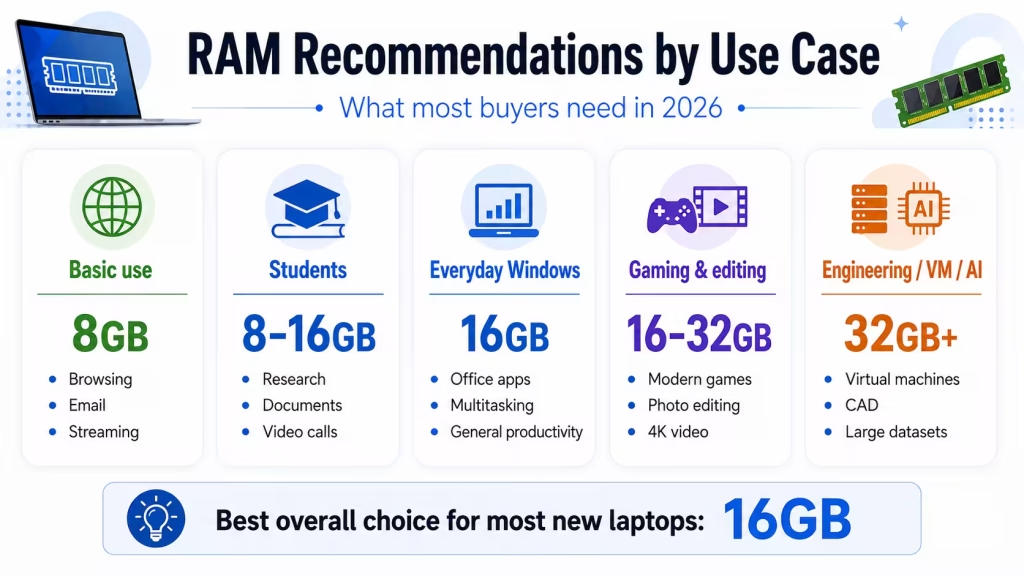
For most students:
- 8GB: Basic schoolwork and browser-based learning
- 16GB: Best general recommendation
- 32GB: Engineering, architecture, media production, advanced programming, or virtual machines
A student using documents, presentations, online classes, and research websites can manage with 8GB. However, 16GB provides more room for multitasking and is a safer choice for a laptop expected to last through several years of study.
Check our Best Laptop Specs for Students guide for recommendations covering processors, storage, displays, and battery life.
How much RAM do you need for gaming?
For modern gaming laptops:
- 8GB: Too limited for many current games
- 16GB: Practical minimum for most gaming
- 32GB: Better for demanding games, streaming, modifications, and background applications
- 64GB: Rarely necessary for gaming alone
The GPU has a greater impact on game performance than increasing memory beyond what the game needs. A laptop with 16GB and a stronger graphics card is normally a better gaming choice than one with 32GB and a much weaker GPU.
Before buying, also check whether the memory operates in dual-channel mode and whether it can be upgraded.
How much RAM do you need for photo and video editing?
For photo editing:
- 8GB can handle basic edits
- 16GB is better for larger images and multiple applications
- 32GB is useful for large RAW files, layered projects, and professional workflows
For video editing:
- 16GB can be sufficient for lighter HD projects
- 32GB is preferable for 4K footage and complex timelines
- 64GB may help with high-resolution professional projects and several creative applications running together
RAM is only one factor. The processor, GPU, storage speed, media format, and software optimization also affect editing performance.
How much RAM does a Chromebook need?
For a Chromebook:
- 4GB: Very basic use
- 8GB: Recommended for most users
- 16GB: Heavy browser multitasking, Linux tools, development, and longer useful life
Chromebook Plus models require at least 8GB of RAM, along with 128GB of storage and other higher hardware standards.
You can browse Chromebooks in the LaptopStats catalog to compare current memory and storage configurations.
Unified memory versus traditional RAM
Apple laptops and some other highly integrated systems use unified memory.
Unified memory is shared by the CPU, GPU, and other parts of the system rather than assigning separate memory pools to each component. This can be efficient, but the advertised capacity is still limited.
An 8GB unified-memory laptop does not magically have the same capacity as a 16GB system. Software optimization can improve how efficiently memory is used, but demanding applications still benefit from additional capacity.
Because memory in modern MacBooks is not upgradeable after purchase, consider 16GB or more when you plan to keep the laptop for many years or use demanding applications.
Can laptop RAM be upgraded?
Some laptops allow RAM upgrades, while others have memory permanently soldered to the motherboard.
Upgradeability is common in:
- Larger gaming laptops
- Mobile workstations
- Some business laptops
- Selected repairable models
It is less common in:
- MacBooks
- Thin ultrabooks
- Many 2-in-1 laptops
- Snapdragon laptops
- Some budget models
Before buying, check:
- Whether the RAM is soldered
- Whether there are open memory slots
- The maximum supported capacity
- Whether upgrading affects the warranty
When memory is not upgradeable, buy enough for your expected future needs at the time of purchase.
Does RAM speed matter?
RAM speed can affect performance, particularly for laptops that rely on integrated graphics. However, capacity is usually more important than a small speed difference.
In most cases:
- 16GB of slightly slower RAM is better than 8GB of faster RAM
- Dual-channel memory may improve integrated graphics performance
- The laptop determines which RAM type and speed it supports
- Soldered LPDDR memory can be efficient but is not upgradeable
Do not choose a laptop based on RAM speed alone.
Final recommendation
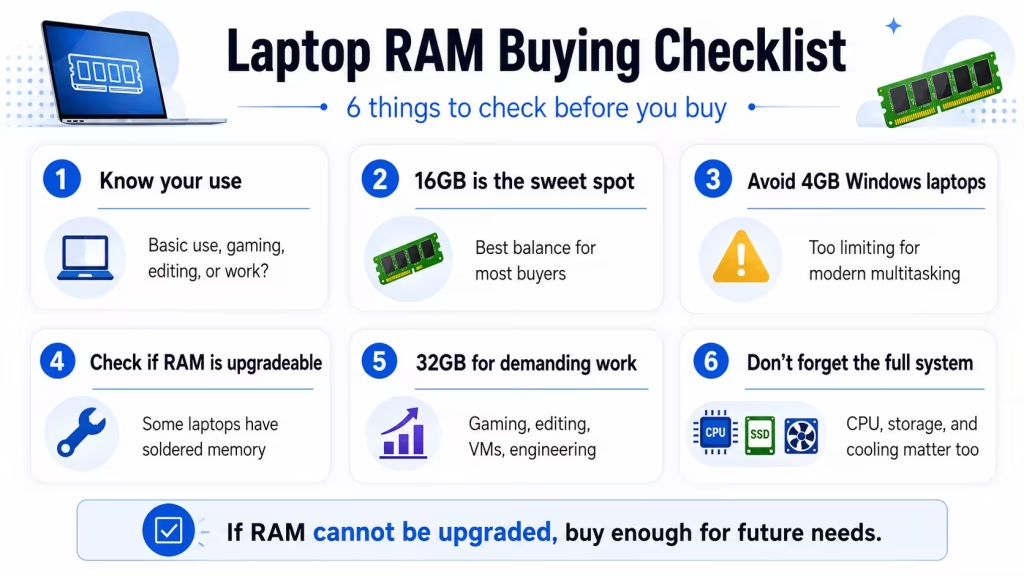
For a laptop purchased in 2026:
- Avoid 4GB Windows laptops
- Choose 8GB only for basic use, limited budget or Chromebook
- Choose 16GB for the best balance for most people
- Choose 32GB for gaming, creative work, engineering, virtual machines, or heavy multitasking
- Choose 64GB only for specialized professional workloads
The safest recommendation for the average buyer is 16GB of RAM.
Also consider whether the memory is upgradeable. A lower-cost laptop with replaceable RAM may offer better long-term value than a sealed system that cannot be expanded.
The right amount of memory depends on how you use your laptop, but 16GB is the best choice for most buyers. You can compare models with 8GB of RAM, 16GB of RAM, or 32GB of RAM, or use the Laptop Picker to narrow the results by all major specifications.
Expanding the memory (RAM) of your laptop can significantly enhance its performance, especially if you find it struggling with multitasking, running demanding applications, or experiencing slowdowns. Adding more RAM is a feasible upgrade for many laptops, but it’s essential to consider factors such as compatibility, limitations, and potential benefits. This article explores the process of adding memory to your laptop, considerations to keep in mind, and steps to ensure a successful upgrade.
Understanding Laptop Memory (RAM)
RAM (Random Access Memory) is a type of volatile memory that your laptop uses to store data that is actively being used or processed by the CPU. More RAM allows your laptop to handle more tasks simultaneously and run applications more smoothly without slowing down.
Factors to Consider Before Upgrading RAM:
- Compatibility: Not all laptops allow for RAM upgrades, and compatibility can vary depending on the model and manufacturer. Before proceeding, check your laptop’s user manual or manufacturer’s website to verify if it supports RAM upgrades and the maximum amount of RAM it can accommodate.
- Current RAM Configuration: Determine how much RAM your laptop currently has and whether it meets your needs. You can check this in the system information or task manager on Windows, or About This Mac > Memory on macOS.
- Type of RAM: Laptops typically use SO-DIMM (Small Outline Dual In-Line Memory Module) RAM, which is different from desktop RAM. Ensure you purchase RAM modules that are compatible with your laptop’s specifications, including the correct speed (MHz) and voltage.
- Maximum Supported Capacity: Even if your laptop supports RAM upgrades, there may be a limit to how much RAM it can handle. Check the maximum supported capacity to determine the potential for upgrading.
Steps to Add Memory to Your Laptop:
1. Research and Purchase Compatible RAM:
- Identify the type and specifications of RAM compatible with your laptop.
- Purchase RAM from reputable manufacturers or retailers to ensure quality and compatibility.
2. Prepare Your Laptop:
- Shut down your laptop and disconnect any peripherals.
- If possible, ground yourself to prevent static electricity from damaging components.
3. Access and Install RAM:
- Refer to your laptop’s user manual or manufacturer’s website for specific instructions on accessing the RAM slots.
- Usually, you’ll need to remove a panel on the bottom of the laptop to access the RAM slots.
- Carefully insert the new RAM module into the slot at a 45-degree angle, ensuring it is fully seated.
- Press down gently until the clips on each side of the slot click into place and secure the RAM module.
4. Close Up Your Laptop:
- Replace any panels or covers that were removed to access the RAM slots.
- Screw them back into place securely.
5. Power On and Verify:
- Power on your laptop and check the BIOS or system information to confirm that the new RAM is detected.
- Ensure the laptop boots up normally and performs as expected.
Benefits of Adding More RAM:
- Improved Performance: Faster loading times, smoother multitasking, and better responsiveness when running multiple applications.
- Enhanced Multitasking: Ability to handle more demanding tasks simultaneously without slowdowns.
- Future-Proofing: Extend the usable lifespan of your laptop by accommodating future software updates and increasing memory requirements.
Conclusion
Adding memory (RAM) to your laptop is a viable way to enhance its performance and improve your overall computing experience.
By ensuring compatibility, following proper installation procedures, and selecting quality RAM modules, you can successfully upgrade your laptop’s memory to meet your needs for multitasking, gaming, creative work, and more. Before proceeding, always consult your laptop’s documentation or seek professional assistance if you’re unsure about the upgrade process.
With careful consideration and the right approach, expanding your laptop’s RAM can provide a noticeable boost in performance and efficiency for years to come.
Choosing the right amount of SSD (Solid State Drive) storage for your laptop is crucial as it directly affects performance, storage capacity, and overall usability. SSDs offer faster data access speeds and improved reliability compared to traditional hard disk drives (HDDs), making them an ideal choice for modern laptops. This article will guide you through understanding SSD storage requirements, factors to consider, and recommendations based on different usage scenarios.
Understanding SSD Basics
SSDs use flash memory to store data, offering faster read and write speeds than HDDs, which use spinning disks and mechanical parts. This results in quicker boot times, faster application launches, and overall snappier performance for your laptop.
Factors to Consider When Choosing SSD Storage:
- Usage Patterns:
- Casual Use: For web browsing, email, and document editing, 128GB to 256GB SSDs are usually sufficient.
- Multimedia and Gaming: If you store large media files or install games, consider 512GB to 1TB or more for ample space.
- Professional Use: Video editing, graphic design, and software development may require 1TB or larger SSDs for storing large project files.
- Operating System and Applications:
- Windows: Windows 10 or 11 typically requires about 20GB to 30GB of space for installation. Additional space is needed for updates and temporary files.
- macOS: macOS installation varies but generally requires 20GB to 30GB of space. More space may be needed for updates and applications.
- Linux: Linux distributions vary, but most installations require 5GB to 15GB of space. Additional space depends on installed packages and data.
- Future Needs and Upgradability:
- Consider future software updates, additional applications, and data growth when determining the amount of SSD storage you need.
- Some laptops allow for SSD upgrades, while others have fixed storage, so choose accordingly based on your long-term requirements.
Recommended SSD Configurations Based on Usage:
- Casual Users and Students:
- Recommended: 128GB to 256GB
- Why: Adequate for storing documents, photos, and basic applications without consuming excessive space.
- Multimedia Enthusiasts and Gamers:
- Recommended: 512GB to 1TB
- Why: Provides enough space for large media files, games, and applications, ensuring smooth performance and storage flexibility.
- Creative Professionals and Power Users:
- Recommended: 1TB or larger
- Why: Essential for storing extensive project files, high-resolution media, and running resource-intensive applications like video editing software.
Benefits of SSDs:
- Speed: SSDs offer faster data access speeds, resulting in quicker boot times, faster application launches, and improved overall system responsiveness.
- Reliability: SSDs have no moving parts, making them more durable and less susceptible to physical damage compared to HDDs.
- Energy Efficiency: SSDs consume less power than HDDs, contributing to longer battery life in laptops.
Conclusion
Choosing the right SSD storage capacity for your laptop depends on your specific needs, usage patterns, and budget.
Whether you’re a casual user, gamer, or professional requiring extensive storage for creative work, selecting the appropriate SSD size ensures optimal performance and storage efficiency.
By considering factors such as operating system requirements, future scalability, and the types of applications you use, you can confidently determine how much SSD storage you need to enhance your laptop’s performance and meet your storage needs effectively.
Choosing an operating system (OS) for your laptop is a crucial decision that impacts your overall computing experience, from usability and performance to software compatibility and security. Each operating system—Windows, macOS, and Linux—offers unique features and benefits tailored to different user needs and preferences. In this comprehensive comparison, we explore the strengths and weaknesses of each OS to help you determine which one might be the best fit for you.
Windows: Versatile and Widely Compatible
Pros of Windows:
- Wide Compatibility: Windows is compatible with a vast range of hardware and software, making it a versatile choice for both personal and professional use.
- Extensive Software Library: It boasts the largest selection of applications, from productivity tools to games, available through the Microsoft Store and third-party sources.
- Familiar User Interface: Windows features a user-friendly interface with customizable options, making it accessible for users of all levels.
- Gaming Support: Windows is the dominant platform for PC gaming, with support for DirectX and a vast library of games available on platforms like Steam.
- Hardware Variety: Numerous laptop manufacturers offer Windows laptops in various configurations, catering to different budgets and requirements.
Cons of Windows:
- Security Concerns: Windows is more susceptible to viruses and malware compared to macOS and Linux, requiring regular updates and security software.
- Performance Variability: Performance can vary depending on hardware configurations and the amount of background processes running, potentially leading to slowdowns.
- Cost: While some versions of Windows come pre-installed on laptops, others require purchasing a license, adding to the overall cost.
MacOS: Seamless Integration and User Experience
Pros of macOS:
- Intuitive User Interface: macOS is known for its sleek design and intuitive user interface, offering a seamless user experience across Apple devices.
- Optimized for Apple Ecosystem: It integrates seamlessly with other Apple products like iPhones and iPads, allowing for continuity in workflows.
- Security: macOS is considered more secure than Windows, with built-in encryption, regular updates, and a curated App Store reducing the risk of malware.
- Developer Tools: macOS is popular among developers for its Unix-based terminal and built-in development tools, making it ideal for software development.
- Media and Creativity: It is favored by professionals in creative industries for its robust multimedia capabilities, including video editing and graphic design software like Final Cut Pro and Logic Pro X.
Cons of macOS:
- Limited Hardware Choices: macOS is exclusively available on Apple’s own hardware, limiting options compared to Windows laptops in terms of configurations and price points.
- Cost: Apple laptops are typically more expensive than their Windows counterparts with similar specifications, placing them in a higher price bracket.
- Software Compatibility: While macOS supports a wide range of applications, some software titles are exclusive to Windows or have limited macOS versions.
Linux: Open Source Flexibility and Customization
Pros of Linux:
- Open Source: Linux distributions (distros) like Ubuntu, Fedora, and Debian are free and open source, fostering a community-driven ecosystem.
- Customization: Linux offers extensive customization options, allowing users to tailor their desktop environments and software configurations to their preferences.
- Stability and Security: Linux is known for its stability, with fewer crashes and performance issues compared to Windows. It also has a reputation for strong security, benefiting from a transparent and collaborative development model.
- Performance: Linux is lightweight and efficient, making it suitable for older hardware and resource-constrained systems.
- Developer and Server Use: Linux dominates the server market and is preferred by developers for its command-line interface (CLI) tools and development environments like Docker and Git.
Cons of Linux:
- Software Compatibility: While Linux supports many open-source and third-party applications, it lacks support for certain proprietary software and games that are exclusive to Windows or macOS.
- Learning Curve: Linux can have a steeper learning curve for users accustomed to graphical interfaces and proprietary software, requiring familiarity with command-line operations for certain tasks.
- Hardware Compatibility: While Linux has improved hardware compatibility over the years, some specialized hardware or peripherals may not have native Linux drivers or support.
Conclusion: Choosing the Right OS for You
The “best” operating system ultimately depends on your specific needs, preferences, and how you intend to use your laptop:
- Choose Windows if you prioritize compatibility with a wide range of software, including gaming, and prefer a familiar user interface with extensive customization options.
- Opt for macOS if you value seamless integration with other Apple devices, prioritize security and reliability, and work extensively with media and creative software.
- Consider Linux if you prefer an open-source environment, enjoy customization and flexibility, prioritize stability and security, and are comfortable with exploring and learning new software tools.
Ultimately, your decision should consider factors such as software compatibility, user interface preferences, security considerations, and your budget.
Each operating system offers distinct advantages and may cater better to different user demographics and use cases. By understanding these differences, you can make an informed choice that aligns with your computing needs and enhances your overall laptop experience.
When choosing a laptop, one of the critical decisions you’ll face is whether to opt for a model with integrated graphics or discrete graphics. Graphics processing plays a crucial role in visual performance, gaming capabilities, and multimedia tasks. Understanding the differences between integrated and discrete graphics, their advantages, and considerations will help you make an informed decision based on your specific needs and preferences.
Understanding Integrated Graphics
Integrated graphics refer to a graphics processing unit (GPU) integrated within the CPU. These GPUs share system memory (RAM) for graphics processing tasks and are commonly found in ultrabooks, budget-friendly laptops, and thin-and-light designs.
Pros of Integrated Graphics:
- Cost and Affordability: Laptops with integrated graphics are generally more affordable than those with discrete GPUs, making them budget-friendly options for casual users and students.
- Power Efficiency: Integrated graphics consume less power than discrete GPUs, contributing to longer battery life, especially beneficial for ultraportable laptops.
- Compact Design: Integrated graphics allow for thinner and lighter laptop designs since they do not require additional space or cooling mechanisms for a discrete GPU.
Cons of Integrated Graphics:
- Performance Limitations: Integrated graphics are less powerful than discrete GPUs, limiting their ability to handle demanding gaming, graphic design, and video editing tasks.
- Graphics Quality: While sufficient for basic tasks and multimedia consumption, integrated graphics may struggle with high-resolution gaming, VR (Virtual Reality), and rendering complex 3D graphics.
Understanding Discrete Graphics
Discrete graphics refer to a dedicated GPU separate from the CPU, equipped with its own dedicated video memory (VRAM). These GPUs are found in gaming laptops, professional workstations, and laptops designed for content creation.
Pros of Discrete Graphics:
- Performance: Discrete GPUs offer superior graphics performance compared to integrated graphics, providing smoother gameplay, faster rendering times, and enhanced visual quality for demanding applications.
- Gaming Capabilities: Gaming laptops with discrete GPUs can handle modern games at higher frame rates and settings, delivering a more immersive gaming experience.
- Professional Applications: Discrete GPUs are essential for professionals in fields such as graphic design, video editing, 3D modeling, and engineering simulations, where GPU acceleration significantly boosts productivity.
Cons of Discrete Graphics:
- Cost: Laptops with discrete graphics tend to be more expensive due to the higher cost of the GPU and associated components.
- Power Consumption: Discrete GPUs consume more power than integrated graphics, which can lead to shorter battery life, especially under heavy graphics load.
- Heat and Noise: Discrete GPUs generate more heat during operation, requiring robust cooling solutions that may increase laptop size and fan noise levels.
Choosing Between Integrated and Discrete Graphics
1. Casual Use and Productivity:
- Integrated Graphics: Ideal for web browsing, email, document editing, and streaming multimedia content with sufficient performance and power efficiency.
2. Gaming and Multimedia:
- Discrete Graphics: Recommended for gaming enthusiasts and users who require superior graphics performance for playing modern games, editing videos, or working with high-resolution multimedia content.
3. Professional Use and Content Creation:
- Discrete Graphics: Essential for professionals in creative fields (e.g., graphic design, video editing, 3D modeling) where GPU acceleration is critical for rendering complex projects efficiently.
Conclusion
The choice between integrated and discrete graphics ultimately depends on your specific needs, budget, and usage patterns. Integrated graphics offer cost-effectiveness, power efficiency, and adequate performance for everyday tasks and casual multimedia consumption.
In contrast, discrete graphics deliver superior performance, gaming capabilities, and enhanced productivity for demanding applications and professional use cases.
By understanding the strengths and limitations of each option and assessing your priorities—whether gaming, content creation, or everyday productivity—you can select the type of graphics solution that best suits your requirements and enhances your overall laptop experience accordingly.
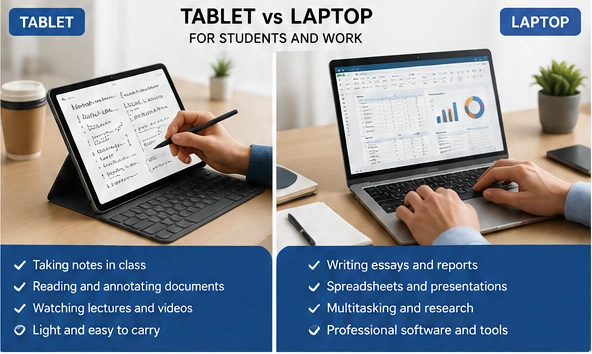
Choosing between a tablet and a laptop depends on how you plan to use the device.
A tablet is usually better for portability, entertainment, reading, handwritten notes, and casual browsing. A laptop is generally better for typing, multitasking, desktop software, file management, gaming, and professional work.
For most people buying only one device, a laptop is the safer choice. A tablet works best when mobility and touchscreen use matter more than desktop-level productivity.
Quick answer
Choose a tablet if you mainly want to:
- Browse the web
- Watch videos
- Read books or documents
- Take handwritten notes
- Draw with a stylus
- Use mobile apps
- Carry the lightest possible device
Choose a laptop if you need to:
- Write long documents
- Work with spreadsheets
- Manage many files
- Use desktop software
- Multitask across several windows
- Connect printers or external displays
- Edit photos or videos
- Play PC games
A 2-in-1 laptop may be a good middle ground when you want Windows software, a physical keyboard, and a touchscreen in one device.
What is the main difference?
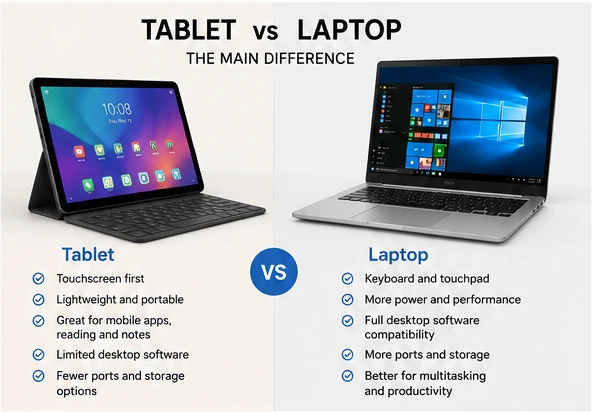
A tablet is designed primarily around a touchscreen. Most tablets run mobile operating systems such as iPadOS or Android.
A laptop normally includes:
- A physical keyboard
- A touchpad
- A desktop operating system
- More ports
- More local storage
- Better support for demanding software
Adding a keyboard can make a tablet feel more like a laptop, but it does not automatically provide the same software compatibility, file management, or multitasking experience.
When is a tablet better?
A tablet is the better option when portability and touchscreen use are your main priorities.
Tablets are useful for:
- Reading and streaming
- Taking notes in class
- Drawing and digital art
- Annotating PDFs
- Video calls
- Presentations
- Casual browsing
- Mobile games
They are usually lighter than laptops and easier to hold while standing, traveling, or relaxing on a sofa.
A compatible stylus can make a tablet especially useful for students, artists, teachers, and anyone who works with handwritten notes or diagrams.
However, remember to include accessories when comparing weight and price. A keyboard case, stylus, stand, charger, and USB adapter can make a tablet setup considerably heavier and more expensive.
When is a laptop better?
A laptop is usually better for work, school assignments, and tasks that require frequent typing or multitasking.
Laptops provide:
- A more comfortable keyboard
- Better file management
- Full desktop browsers
- More connection ports
- Better support for external monitors
- Greater software compatibility
- More storage options
- Higher performance choices
A laptop is generally the better choice for:
- Writing reports
- Working with large spreadsheets
- Programming
- Accounting software
- Photo and video editing
- Engineering or CAD programs
- Business applications
- PC gaming
For complex workflows involving several browser windows, documents, email, and communication tools, a laptop is usually easier to manage.
Which is better for students?
A tablet can work well for:
- Handwritten notes
- Reading textbooks
- Annotating documents
- Watching lectures
- Simple assignments
- Art and design work
A laptop is usually better for:
- Writing essays
- Research with many browser tabs
- Presentations
- Spreadsheets
- Programming
- Online exams
- Specialized school software
For most college or university students, a laptop is the safer primary computer. A tablet can be an excellent secondary device for notes and reading.
Before buying, check whether the school requires Windows, macOS, a specific browser, testing software, or specialized applications.
You can also read our guide to the best laptop specifications for students before deciding how much RAM, storage, and processing power you need.
Which is better for work?
For most office and professional use, a laptop is the stronger choice.
It is better suited to:
- Long emails
- Word processing
- Spreadsheets
- Video meetings while multitasking
- Shared drives
- Printers and scanners
- Business software
- Remote administration tools
A tablet can still work well for email, presentations, reviewing documents, field work, and browser-based tasks.
Some people can use a tablet as their main work device, but they may need a keyboard, mouse, stand, and USB hub. Once those accessories are added, the total cost may approach that of a good laptop.
Tablet vs laptop comparison
| Feature | Tablet | Laptop |
|---|---|---|
| Portability | Excellent | Good to excellent |
| Long-form typing | Fair with keyboard | Excellent |
| Touch and stylus | Excellent | Depends on model |
| Desktop software | Limited | Excellent |
| Multitasking | Good for light use | Better for complex work |
| Gaming | Mobile and cloud games | Full PC gaming available |
| Ports | Usually limited | Usually more extensive |
| Local storage | Often lower | Usually higher |
| Battery life | Usually excellent | Varies by model |
| Best for | Media, notes and mobility | Work, school and productivity |
Is a tablet cheaper than a laptop?
Entry-level tablets often cost less than laptops, but the base price does not tell the full story.
You may need to add:
- A keyboard case
- A stylus
- More internal storage
- A protective cover
- A USB hub or adapter
A premium tablet with accessories can cost as much as, or more than, a capable laptop.
A budget laptop usually includes a keyboard, touchpad, desktop operating system, and several ports in the purchase price.
Compare the cost of the complete setup you need, not only the starting price.
Can a tablet replace a laptop?
A tablet may replace a laptop when your needs are limited to:
- Web browsing
- Streaming
- Video calls
- Note-taking
- Basic document editing
- Cloud-based applications
A tablet is less likely to replace a laptop when you need:
- Advanced desktop software
- Extensive file management
- Long typing sessions
- PC gaming
- Programming tools
- Engineering applications
- Multiple external devices
- Heavy photo or video editing
For a more detailed discussion, read Can a Tablet Replace a Laptop?.
Should you buy a 2-in-1 laptop?
A 2-in-1 laptop combines some tablet features with a desktop operating system.
Common designs include:
- Convertible laptops: The screen folds backward into tablet mode.
- Detachable laptops: The keyboard can be removed.
A 2-in-1 may be a good option when you want:
- Windows applications
- A physical keyboard
- Touchscreen controls
- Stylus support
- Better connectivity than most tablets
The tradeoffs are usually higher weight than a dedicated tablet and a higher price than a basic laptop.
What should you check before buying?
Ask these questions:
- Which applications must I use?
- How much typing will I do?
- Do I need a stylus?
- Will I connect monitors, printers, or storage devices?
- Do I need Windows or macOS?
- Will this be my only computer?
These answers will usually make the choice clear.
Final recommendation
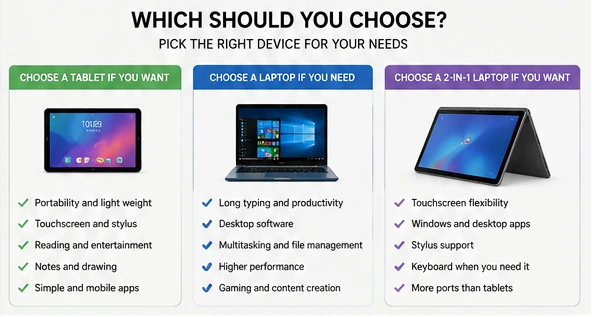
Choose a tablet when portability, touch controls, reading, entertainment, and handwritten notes are your main priorities.
Choose a laptop when you need dependable productivity, desktop applications, file management, extensive typing, gaming, or professional software.
Choose a 2-in-1 laptop when you want touchscreen flexibility without giving up Windows applications and a physical keyboard.
For most people buying only one device, a laptop remains the more versatile option.
You can browse laptops in the LaptopStats catalog or use the Laptop Picker to narrow the available models.
When choosing or upgrading a computer, whether a laptop or desktop, one of the critical decisions you face is prioritizing between more RAM (Random Access Memory) or a faster processor (CPU). Both RAM and the CPU play essential roles in determining your system’s performance, but they serve different functions and impact different aspects of computing. This article explores the differences between RAM and processors, the roles they play in overall system performance, and considerations to help you decide which upgrade is more beneficial for your needs.
Understanding RAM vs. Processor
1. RAM (Random Access Memory):
- Function: RAM is a type of volatile memory that temporarily stores data and instructions that your computer’s CPU needs to access quickly. It allows your computer to multitask efficiently by holding active programs and data that are currently in use.
- Impact on Performance: More RAM enables your computer to handle more tasks simultaneously without slowing down. Insufficient RAM can lead to sluggish performance when multitasking or running memory-intensive applications.
2. Processor (CPU – Central Processing Unit):
- Function: The CPU is often referred to as the brain of the computer. It executes instructions, performs calculations, and controls the overall operation of your computer. A faster processor can process data more quickly, leading to faster execution of tasks and improved overall system responsiveness.
- Impact on Performance: A faster processor is crucial for tasks that require intensive computational power, such as gaming, video editing, 3D rendering, and running complex software.
When More RAM is Beneficial:
- Multitasking: If you frequently use multiple applications simultaneously (e.g., web browsers, office suites, media players), more RAM allows your computer to switch between tasks smoothly without slowdowns.
- Large File Handling: For tasks involving large files, such as video editing, graphic design, and data analysis, having ample RAM ensures that your computer can manipulate and process data efficiently.
- Virtual Machines: Running virtual machines (VMs) or emulators requires sufficient RAM to allocate resources to each virtual environment effectively.
When a Faster Processor is Beneficial:
- CPU-Intensive Tasks: Tasks that rely heavily on CPU performance, such as gaming with high frame rates, video editing, compiling code, and rendering 3D graphics, benefit from a faster processor.
- Real-Time Processing: Applications that require real-time data processing, such as financial trading platforms, scientific simulations, and live streaming, benefit from a CPU that can quickly execute instructions.
Balancing RAM and Processor Upgrades:
1. Assess Your Usage Patterns:
- Identify the types of tasks you perform regularly and determine whether they are more CPU-bound or RAM-intensive.
- Evaluate if your current system’s performance bottlenecks are due to insufficient RAM or CPU power.
2. Consider Budget and Priorities:
- If your budget allows, upgrading both RAM and the CPU provides the best overall performance boost.
- Prioritize upgrades based on the specific tasks that are most critical to your productivity or enjoyment.
3. System Bottlenecks:
- Identify if your computer’s performance issues are primarily due to lack of RAM (e.g., frequent freezing when multitasking) or insufficient CPU power (e.g., slow application launch times, stuttering during gameplay).
Conclusion
Choosing between more RAM or a faster processor depends on your specific computing needs, usage patterns, and budget.
For users who multitask frequently, handle large files, or run multiple virtual machines, upgrading RAM can significantly improve overall system responsiveness and multitasking capability.
On the other hand, users engaged in CPU-intensive tasks such as gaming, video editing, or software development benefit more from a faster processor that can handle complex computations quickly and efficiently.
Ultimately, the best approach may involve a balance between upgrading both RAM and the CPU to achieve optimal system performance for your specific workload and usage scenarios. By understanding the roles of RAM and processors and assessing your priorities, you can make an informed decision that enhances your computing experience effectively.