
As technology continues to evolve, the debate over whether tablets can effectively replace laptops remains relevant. Tablets have gained popularity for their portability, touchscreen interface, and versatility in consuming media and running apps. However, laptops offer robust performance, productivity features, and a traditional computing experience that many users rely on for work and other intensive tasks. This article explores the capabilities, advantages, challenges, and considerations of using a tablet as a replacement for a laptop.
Understanding Tablets
Tablets are portable touchscreen devices that typically feature a lightweight and compact design. They are primarily used for web browsing, media consumption, social networking, and running mobile applications. Tablets generally do not have a physical keyboard and rely on touchscreen input for navigation and interaction.
Advantages of Tablets:
- Portability: Tablets are lightweight and easy to carry, making them ideal for users who prioritize mobility and want a device that can be used on the go.
- Touchscreen Interface: The intuitive touchscreen interface of tablets offers a seamless experience for browsing, navigating apps, and consuming multimedia content through gestures and taps.
- App Ecosystem: Tablets have access to a vast array of apps through platforms like Apple App Store (iOS) and Google Play Store (Android), providing versatility for entertainment, productivity, and creativity.
- Battery Life: Tablets generally have longer battery life compared to laptops, allowing for extended use without needing frequent recharging.
Disadvantages of Tablets:
- Productivity Limitations: Tablets may not be suitable for tasks that require extensive typing, data entry, or multitasking due to the lack of a physical keyboard and limited multitasking capabilities.
- Performance Constraints: While modern tablets are capable of handling basic productivity tasks and multimedia consumption, they may struggle with demanding applications such as video editing, graphic design, and intensive gaming.
- Storage and Connectivity: Tablets often have limited storage options and lack ports for connecting peripherals such as USB drives, external monitors, or printers.
Understanding Laptops
Laptops are portable computers equipped with a physical keyboard, trackpad, and a range of connectivity options. They offer a balance between performance and portability, making them suitable for a wide range of tasks from productivity to gaming and content creation.
Advantages of Laptops:
- Versatility: Laptops are versatile devices capable of running a variety of applications, including office productivity suites, graphic design software, video editing tools, and gaming applications.
- Performance: Laptops typically feature more powerful hardware compared to tablets, including faster processors, dedicated graphics cards (in some models), and more RAM, allowing for better multitasking and handling of resource-intensive tasks.
- Productivity Features: The presence of a physical keyboard and trackpad enhances productivity, making laptops suitable for tasks that involve extensive typing, data manipulation, and multitasking.
- Expandability: Laptops often offer options for hardware upgrades such as adding more RAM, upgrading storage drives, or connecting external devices via USB ports, HDMI ports, and other connectivity options.
Disadvantages of Laptops:
- Portability: While laptops are portable, they are generally bulkier and heavier than tablets, which can make them less convenient for carrying around on a daily basis.
- Battery Life: Laptops tend to have shorter battery life compared to tablets, especially under heavy use or when performing tasks that require high processing power.
- Cost: Laptops with higher performance specifications and features such as dedicated graphics cards can be more expensive than tablets, particularly premium models designed for gaming or professional use.
Can a Tablet Replace a Laptop?
The answer to whether a tablet can replace a laptop largely depends on your specific needs, usage patterns, and priorities:
1. Casual Use and Entertainment:
- Tablet: Suitable for casual web browsing, social media, streaming movies, reading e-books, and playing mobile games due to its portability and touchscreen interface.
2. Productivity and Professional Use:
- Laptop: Recommended for users who require robust performance for productivity tasks such as word processing, spreadsheet management, data analysis, video conferencing, and content creation.
3. Specialized Tasks:
- Laptop: Necessary for tasks that demand powerful hardware resources, such as video editing, graphic design, 3D modeling, software development, and running enterprise-level applications.
4. Hybrid and Convertible Devices:
- Hybrid devices, also known as 2-in-1 laptops or convertible tablets, offer a compromise by combining the functionality of both tablets and laptops. These devices feature detachable keyboards or flip-over screens that can be used in tablet mode for casual use and laptop mode for productivity tasks.
Conclusion
While tablets offer portability, a touchscreen interface, and access to a vast app ecosystem, they may not fully replace laptops for users who rely on extensive typing, multitasking, and demanding applications.
Laptops, with their robust performance, productivity features, and versatility, remain essential tools for professionals, students, and gamers who require a traditional computing experience.
Ultimately, the choice between a tablet and a laptop depends on your specific requirements, budget, and preference for mobility versus performance.
By understanding the strengths and limitations of each device type, you can make an informed decision that aligns with your computing needs and enhances your digital experience accordingly.
Choosing between integrated and discrete graphics for your laptop is a decision that significantly impacts its performance, suitability for tasks, and overall user experience. Both integrated and discrete graphics solutions have their strengths and limitations, making it essential to understand the differences and consider your specific needs before making a decision. This article explores the considerations, advantages, and disadvantages of integrated and discrete graphics to help you determine which option is best for your laptop usage.
Understanding Integrated Graphics
Integrated graphics are built into the laptop’s motherboard or combined with the CPU, sharing system memory (RAM) for graphics processing tasks. They are designed to provide basic graphical capabilities for everyday computing tasks such as web browsing, document editing, and multimedia consumption.
Advantages of Integrated Graphics:
- Cost-Effectiveness: Laptops with integrated graphics tend to be more affordable than those with discrete GPUs, making them suitable for budget-conscious users.
- Power Efficiency: Integrated graphics consume less power compared to discrete GPUs, contributing to longer battery life on laptops.
- Compact Design: Integrated graphics do not require additional space or cooling mechanisms beyond what is already designed into the laptop, allowing for thinner and lighter laptop designs.
Disadvantages of Integrated Graphics:
- Limited Performance: Integrated graphics are less powerful than discrete GPUs, which can limit their ability to handle graphically demanding tasks such as gaming, video editing, and 3D rendering effectively.
- Shared Memory: Integrated graphics use system memory (RAM) for graphics processing, potentially impacting overall system performance when multitasking or using memory-intensive applications.
Understanding Discrete Graphics
Discrete graphics refer to dedicated GPUs that are separate from the CPU and have their own dedicated video memory (VRAM). These GPUs are designed for higher performance and are commonly found in gaming laptops, professional workstations, and laptops optimized for content creation.
Advantages of Discrete Graphics:
- Enhanced Performance: Discrete GPUs offer superior graphics performance compared to integrated graphics, delivering smoother gameplay, faster rendering times, and better visual quality for gaming and multimedia tasks.
- Gaming Capabilities: Laptops with discrete graphics can run modern games at higher frame rates and settings, providing a more immersive gaming experience compared to integrated graphics.
- Professional Applications: Discrete GPUs are essential for professionals in fields such as graphic design, video editing, and 3D modeling, where GPU acceleration significantly boosts productivity.
Disadvantages of Discrete Graphics:
- Cost: Laptops with discrete graphics tend to be more expensive due to the higher cost of the GPU itself and associated components such as cooling systems.
- Power Consumption: Discrete GPUs consume more power compared to integrated graphics, which can lead to shorter battery life on laptops, especially under heavy graphics load.
- Heat Generation: Discrete GPUs generate more heat during operation, requiring robust cooling solutions that may increase the laptop’s size, weight, and fan noise levels.
Considerations for Choosing Between Integrated and Discrete Graphics
1. Usage Requirements:
- Integrated Graphics: Suitable for casual users, students, and those primarily using laptops for everyday tasks, web browsing, and multimedia consumption.
- Discrete Graphics: Recommended for gamers, multimedia enthusiasts, and professionals requiring high graphics performance for gaming, video editing, 3D modeling, and other GPU-intensive applications.
2. Budget Constraints:
- Consider your budget and whether the additional cost of a laptop with discrete graphics aligns with your usage needs and expectations for graphics performance.
3. Portability and Battery Life:
- Integrated graphics offer better power efficiency and longer battery life, making them ideal for users who prioritize mobility and extended use away from power outlets.
4. Future-Proofing:
- Evaluate future needs and whether opting for discrete graphics provides longevity and performance headroom for upcoming software updates, gaming titles, or professional projects.
Conclusion
The choice between integrated and discrete graphics for your laptop depends on your specific needs, budget, and usage patterns.
Integrated graphics offer affordability, power efficiency, and adequate performance for everyday tasks, while discrete graphics provide superior performance for gaming, content creation, and professional applications at the cost of higher power consumption and increased heat generation.
By considering these factors and evaluating your priorities—whether gaming, multimedia consumption, content creation, or professional use—you can make an informed decision that enhances your laptop’s performance and meets your computing needs effectively.
Integrated graphics are a common feature in laptops, providing basic graphical processing capabilities without the need for a separate graphics card. While integrated graphics offer affordability and power efficiency, they are typically integrated directly into the laptop’s motherboard or CPU. This integration raises questions about whether it’s possible to upgrade integrated graphics in a laptop and what considerations users should keep in mind. This article explores the feasibility, limitations, and alternatives to upgrading integrated graphics in laptops.
Understanding Integrated Graphics
Integrated graphics, also known as onboard graphics, refer to a graphics processing unit (GPU) that is integrated into the laptop’s motherboard or combined with the CPU. Unlike discrete graphics cards, which are separate components that can be replaced or upgraded, integrated graphics are built into the laptop’s architecture.
Functionality: Integrated graphics use system memory (RAM) for graphics processing tasks. They are designed to handle basic graphical tasks such as web browsing, video streaming, and productivity applications.
Performance: Integrated graphics typically offer sufficient performance for everyday computing tasks but may struggle with demanding applications such as gaming, video editing, or 3D rendering due to their limited processing power and shared memory resources.
Limitations of Integrated Graphics
- Non-upgradability: One of the primary limitations of integrated graphics in laptops is their non-upgradable nature. Because they are integrated into the motherboard or CPU, they cannot be removed or replaced with a different GPU model.
- Shared Memory: Integrated graphics rely on system memory (RAM) for graphics processing tasks. The amount of available graphics memory is determined by the laptop’s RAM configuration, and it cannot be expanded independently for graphics use only.
- Performance Constraints: Integrated graphics are generally less powerful than discrete GPUs, which limits their ability to handle graphically intensive tasks effectively. They may struggle with modern games, high-resolution video editing, and other GPU-intensive applications.
Can Integrated Graphics be Upgraded?
1. Hardware Limitations:
- Integrated graphics cannot be upgraded in the traditional sense because they are integrated into the laptop’s hardware architecture. Unlike desktop PCs where discrete graphics cards can be added or replaced, laptops with integrated graphics do not have a slot or socket for installing a different GPU.
2. Motherboard Compatibility:
- Since integrated graphics are integrated into the motherboard or CPU, upgrading would require replacing the entire motherboard or CPU with a model that supports a different integrated GPU. This is not practical for most laptop users due to cost, compatibility issues, and technical challenges.
3. BIOS and Firmware Constraints:
- Laptop manufacturers design their systems to work with specific integrated graphics configurations. Changing the integrated GPU would require BIOS or firmware updates that may not be available or supported by the manufacturer.
4. Thermal and Power Considerations:
- Integrated graphics are designed to operate within the thermal and power limits of the laptop’s design. Upgrading to a more powerful integrated GPU would likely require changes to cooling systems and power delivery, which are not feasible in most laptops.
Alternatives to Upgrading Integrated Graphics
While integrated graphics cannot be upgraded in the traditional sense, there are alternative approaches to improve graphics performance or accommodate specific needs:
1. External GPUs (eGPUs):
- External GPUs connect to laptops via Thunderbolt or USB-C ports, providing additional graphics processing power. This allows users to enjoy better gaming performance or run GPU-intensive applications without replacing the laptop’s internal components.
2. Purchasing a Laptop with Discrete Graphics:
- If graphics performance is a priority, consider purchasing a laptop that comes with discrete graphics. These laptops have dedicated GPUs that can be more powerful and offer better performance for gaming, video editing, and other GPU-intensive tasks.
3. Software Optimization and Settings:
- Optimize software settings, reduce graphical effects, and update drivers to improve performance on laptops with integrated graphics. This can help maximize the capabilities of the existing hardware without physical upgrades.
4. Upgrading RAM:
- While upgrading RAM does not directly upgrade integrated graphics, it can improve overall system performance and multitasking capabilities, which indirectly benefits graphics performance.
Conclusion
In conclusion, integrated graphics in laptops cannot be upgraded in the traditional sense due to their integration into the motherboard or CPU.
This limitation is inherent to the design of laptops and the way integrated graphics are implemented. While this may seem restrictive for users seeking enhanced graphics performance, there are alternative solutions such as external GPUs, choosing laptops with discrete graphics, optimizing software settings, and upgrading system components like RAM to improve overall performance.
Understanding these limitations and exploring alternative options will help you make informed decisions when selecting a laptop that meets your graphics performance needs and usage requirements effectively.
Discrete graphics cards, often referred to as dedicated GPUs (Graphics Processing Units), offer enhanced graphics performance and are crucial components in gaming laptops, professional workstations, and laptops designed for intensive graphic tasks. However, like any technology, they come with certain drawbacks that users should consider when making a purchasing decision. This article explores the disadvantages of discrete graphics cards to provide a balanced perspective on their use in laptops.
Cost
Disadvantage: One of the primary drawbacks of discrete graphics cards is their cost. Laptops equipped with dedicated GPUs tend to be more expensive than those with integrated graphics solutions. This is due to the higher manufacturing costs of the GPU itself, as well as additional components required for adequate cooling and power delivery.
Impact: Budget-conscious consumers may find that laptops with discrete graphics exceed their budgetary constraints, particularly if they do not require the additional graphics performance for their typical usage scenarios.
Power Consumption and Battery Life
Disadvantage: Discrete graphics cards consume more power compared to integrated graphics solutions. The GPU requires a higher wattage to operate effectively, which can lead to increased power consumption and subsequently reduce battery life on laptops.
Impact: Users who prioritize portability and long battery life may find that laptops with discrete GPUs do not meet their expectations. These laptops may require frequent charging, especially when performing graphically demanding tasks such as gaming or video editing.
Heat Generation and Thermal Management
Disadvantage: Discrete graphics cards generate more heat during operation compared to integrated graphics. The GPU’s high power consumption and intensive workload contribute to increased thermal output, requiring robust cooling solutions such as heat sinks, fans, or even liquid cooling systems.
Impact: Heat management becomes a critical consideration in laptops with discrete GPUs. Excessive heat can lead to thermal throttling, where the GPU reduces its performance to prevent overheating, resulting in decreased overall system performance and user experience.
Size and Weight
Disadvantage: Laptops with discrete graphics cards often feature larger and heavier designs compared to those with integrated graphics. This is partly due to the need for additional cooling mechanisms and physical space to accommodate the dedicated GPU and associated components.
Impact: Users seeking ultraportable or thin-and-light laptops may find that models with discrete GPUs are bulkier and less convenient for carrying around. The increased weight can also affect mobility and user comfort, particularly for frequent travelers or commuters.
Complexity and Maintenance
Disadvantage: Laptops with discrete graphics cards are generally more complex in design and may require more maintenance compared to those with integrated graphics. The additional components and cooling systems can increase the risk of hardware failures or component malfunctions over time.
Impact: Users may need to invest more time and effort into maintaining laptops with discrete GPUs, such as cleaning dust from vents, monitoring temperatures, and potentially troubleshooting issues related to graphics performance or cooling efficiency.
Conclusion
While discrete graphics cards offer significant benefits in terms of enhanced graphics performance and capabilities, they also come with several disadvantages that users should consider. These include higher cost, increased power consumption leading to shorter battery life, heat generation requiring robust thermal management, larger and heavier laptop designs, and potential complexity in maintenance and repair. When choosing a laptop with discrete graphics, it’s essential to weigh these drawbacks against your specific needs and priorities, such as gaming, content creation, or professional applications. By understanding the trade-offs involved, you can make an informed decision that aligns with your budget, performance expectations, and overall computing requirements.
Choosing between a Chromebook and a traditional laptop can be a daunting decision, especially with the numerous options available in today’s market. Each has its own set of advantages and disadvantages, and the best choice depends on your specific needs and preferences. This article will help you weigh the pros and cons of each to make an informed decision.
Understanding Chromebooks
Chromebooks run on Google’s Chrome OS, a lightweight operating system designed primarily for web-based tasks. They are known for their affordability, simplicity, and integration with Google’s ecosystem.
Key Features of Chromebooks:
- Chrome OS: A streamlined operating system focused on web applications.
- Integration with Google Services: Seamless access to Google Drive, Google Docs, Gmail, and other Google services.
- Web-Based Applications: Reliance on web apps and cloud storage, with access to Android apps via the Google Play Store.
- Security: Regular automatic updates and multiple layers of security.
- Portability: Lightweight and often boasting long battery life.
Understanding Traditional Laptops
Traditional laptops run on a variety of operating systems, the most common being Windows, macOS, and Linux. They offer a broad range of functionalities and are suitable for a variety of tasks from basic productivity to high-end gaming and professional work.
Key Features of Traditional Laptops:
- Diverse Operating Systems: Options include Windows, macOS, and Linux.
- Software Compatibility: Can run a wide range of software applications, including specialized and high-performance software.
- Hardware Variety: Available in numerous configurations, from budget models to high-end machines.
- Customization: Greater flexibility in terms of hardware upgrades and software customization.
Pros and Cons of Chromebooks
Pros:
- Affordability: Generally cheaper than traditional laptops.
- Simplicity: Easy to use with a clean, intuitive interface.
- Security: Built-in security features and automatic updates.
- Speed: Fast boot times and efficient performance for web-based tasks.
- Portability: Lightweight and often have excellent battery life.
Cons:
- Limited Offline Functionality: Primarily designed for online use, with limited capabilities offline.
- Software Limitations: Cannot run traditional desktop applications like Adobe Photoshop or Microsoft Office (though web-based alternatives are available).
- Hardware Limitations: Typically lower-end hardware not suitable for demanding tasks.
- Customization: Limited options for hardware upgrades and software customization.
Pros and Cons of Traditional Laptops
Pros:
- Versatility: Can handle a wide range of tasks from basic to highly specialized.
- Software Compatibility: Runs a broad spectrum of software, including professional and creative applications.
- Performance: Available in configurations that can handle heavy multitasking, gaming, video editing, and more.
- Customization: Greater flexibility in upgrading hardware and customizing software.
Cons:
- Price: Can be more expensive, especially for high-performance models.
- Complexity: Operating systems like Windows or Linux can be more complex and may require more maintenance.
- Security: More susceptible to viruses and malware, often requiring additional security software.
- Portability: Heavier and bulkier than Chromebooks, with varying battery life.
Factors to Consider When Choosing
1. Purpose and Usage
- Web-Based Tasks: If your primary use involves browsing the web, using Google services, streaming videos, and light productivity tasks, a Chromebook is a great choice. Its simplicity and efficiency for web-based tasks make it an excellent option for students, casual users, and those needing a secondary device.
- Professional and Creative Work: If you need to run specialized software for work, such as Adobe Creative Suite, CAD programs, or software development tools, a traditional laptop is necessary. Windows and macOS laptops offer the performance and compatibility required for these tasks.
- Gaming: For gamers, a traditional laptop with a dedicated GPU is essential. Chromebooks are not designed for high-end gaming, though some can handle light Android games.
2. Budget
- Affordable Options: Chromebooks generally offer better value for budget-conscious buyers. If you need a reliable device for everyday tasks without spending much, a Chromebook is ideal.
- Investment in Performance: If you are willing to invest more for higher performance and versatility, a traditional laptop is the better choice. Mid-range and high-end laptops provide more power and features, but at a higher cost.
3. Portability
- On-the-Go Use: If you travel frequently or need a lightweight device with long battery life, a Chromebook excels in portability. Many Chromebooks are designed to be ultra-portable and can last all day on a single charge.
- Performance on the Move: For those who need powerful performance in a portable package, ultrabooks or lightweight traditional laptops offer a balance of power and portability, though they tend to be more expensive than Chromebooks.
4. Ecosystem Integration
- Google Ecosystem: If you already use and rely on Google services like Google Drive, Google Docs, and Gmail, a Chromebook offers seamless integration and a consistent user experience.
- Other Ecosystems: If you prefer or require integration with other ecosystems, such as Microsoft’s Office suite or Apple’s macOS and iOS, a traditional laptop would be a better fit.
5. Longevity and Support
- Long-Term Support: Chromebooks receive regular updates directly from Google, ensuring they remain secure and up-to-date. However, they may have a shorter support lifespan compared to some traditional laptops.
- Hardware Upgrades: Traditional laptops generally allow for more hardware upgrades, such as increasing RAM or storage, which can extend the device’s useful life.
Conclusion
Choosing between a Chromebook and a traditional laptop ultimately depends on your specific needs, budget, and preferences. Chromebooks offer affordability, simplicity, and excellent portability, making them ideal for students, casual users, and those who primarily work online. On the other hand, traditional laptops provide versatility, performance, and software compatibility, catering to professionals, gamers, and users with more demanding computing needs.
By carefully considering the factors outlined above, you can make an informed decision and choose the device that best suits your lifestyle and requirements. Whether you opt for a Chromebook or a traditional laptop, both have their own unique strengths that can enhance your productivity and computing experience.
Chromebooks have gained a solid reputation for being affordable, fast, and secure devices primarily designed for web-based tasks and light productivity work. However, as gaming continues to grow in popularity, many users wonder whether a Chromebook can be a viable option for gaming. The answer is not a simple yes or no; it depends on the type of gaming you are interested in and your expectations. In this article, we will explore the potential of Chromebooks for gaming, the types of games they can handle, and their limitations.
Understanding Chromebook Hardware and Software
Chromebooks run on Google’s Chrome OS, which is a lightweight, cloud-focused operating system. Most Chromebooks are equipped with modest hardware, such as Intel Celeron or Pentium processors, 4GB to 8GB of RAM, and integrated graphics. High-end Chromebooks with better specifications exist, but they are not the norm.
Types of Games You Can Play on a Chromebook
1. Web-Based Games
The simplest and most accessible form of gaming on a Chromebook is through web-based games. These games run directly in the browser and do not require significant hardware resources.
- Examples: Games like Agar.io, Slither.io, and Chrome’s Dino Game are popular web-based titles.
- Pros: Easy to access, no need for installation, and minimal hardware requirements.
- Cons: Generally less complex and less graphically intense than other types of games.
2. Android Games
Chromebooks that support the Google Play Store can run Android games, significantly expanding the range of available titles. Many Android games are optimized for mobile devices but can run well on Chromebooks.
- Examples: Popular Android games like PUBG Mobile, Asphalt 9: Legends, and Clash of Clans.
- Pros: Wide variety of games, touch-screen compatibility on supported Chromebooks, and better graphics and gameplay than most web-based games.
- Cons: Not all Android games are optimized for larger screens or keyboard and mouse input, and performance can vary depending on the Chromebook’s hardware.
3. Linux Games
Chrome OS supports Linux applications, allowing users to install and run Linux-based games. This opens up access to many more games, especially indie titles and older classics that can run on modest hardware.
- Examples: Titles available on platforms like Steam for Linux, such as Celeste, Hollow Knight, and Terraria.
- Pros: Access to a broader range of games, including some high-quality indie titles.
- Cons: Requires enabling Linux (Beta) and may involve more complex setup processes. Performance can be limited by the Chromebook’s hardware.
4. Cloud Gaming
Cloud gaming has emerged as a game-changer, allowing Chromebooks to run AAA titles by streaming them from powerful remote servers. Services like Google Stadia, NVIDIA GeForce Now, and Xbox Cloud Gaming have made this possible.
- Examples: AAA games like Assassin’s Creed Valhalla, Cyberpunk 2077, and Fortnite are available on various cloud gaming platforms.
- Pros: Ability to play graphically intensive games without needing high-end hardware. Game progress and data are stored in the cloud, making it easy to switch between devices.
- Cons: Requires a fast and stable internet connection. There may be latency issues, and subscription fees for cloud gaming services can add up.
Limitations of Gaming on a Chromebook
1. Hardware Constraints
Most Chromebooks are not designed with gaming in mind. They lack the powerful CPUs, GPUs, and RAM found in gaming laptops and desktops. This limits their ability to run resource-intensive games locally, and even some Android games may not perform well on lower-end models.
2. Software Compatibility
While Chrome OS supports web, Android, and Linux applications, it does not natively support Windows or macOS games. This means that many popular PC games are not directly playable on Chromebooks without using cloud gaming services or complex workarounds.
3. Limited Game Selection
The range of games available for Chromebooks is more limited compared to Windows or macOS platforms. While cloud gaming services mitigate this to some extent, they are dependent on a robust internet connection and may not support every game.
4. Control Limitations
Some games are designed with specific control schemes in mind, such as a gamepad or a mouse and keyboard. While Chromebooks with touchscreens can handle many Android games well, others may not translate as smoothly from their original platform, leading to suboptimal gaming experiences.
Optimizing Your Chromebook for Gaming
If you decide to use a Chromebook for gaming, here are some tips to optimize your experience:
- Choose a Chromebook with Better Specs: Opt for models with Intel Core processors, 8GB of RAM, and higher resolution displays for improved performance and visuals.
- Use a Gamepad: For Android and cloud gaming, a compatible Bluetooth gamepad can greatly enhance the gaming experience.
- Enable Linux (Beta): Gain access to a wider range of games by enabling Linux (Beta) and installing Linux-based game clients like Steam.
- Cloud Gaming Subscription: Invest in a cloud gaming subscription to access a larger library of high-quality games without needing powerful local hardware.
- Optimize Network: Ensure you have a fast and stable internet connection to minimize latency and buffering during cloud gaming.
Conclusion
While Chromebooks are not traditionally seen as gaming devices, they can handle a surprising variety of games, particularly through web-based platforms, Android apps, Linux compatibility, and cloud gaming services. However, they do come with limitations, primarily related to hardware performance and software compatibility.
For casual gamers or those who primarily engage in light gaming, Chromebooks can offer a satisfying experience, especially with the added versatility of cloud gaming. However, for dedicated gamers who require high performance and access to the latest AAA titles, a traditional gaming laptop or desktop is still the better choice.
Ultimately, whether a Chromebook is suitable for gaming depends on your gaming preferences, the types of games you want to play, and your expectations for performance and flexibility. By understanding these factors, you can make an informed decision and potentially enjoy gaming on a Chromebook within its capabilities.
Chromebooks are often considerably cheaper than Windows laptops and MacBooks. Entry-level models can cost only a few hundred dollars, while even better-equipped Chromebook Plus devices are usually priced below many premium laptops.
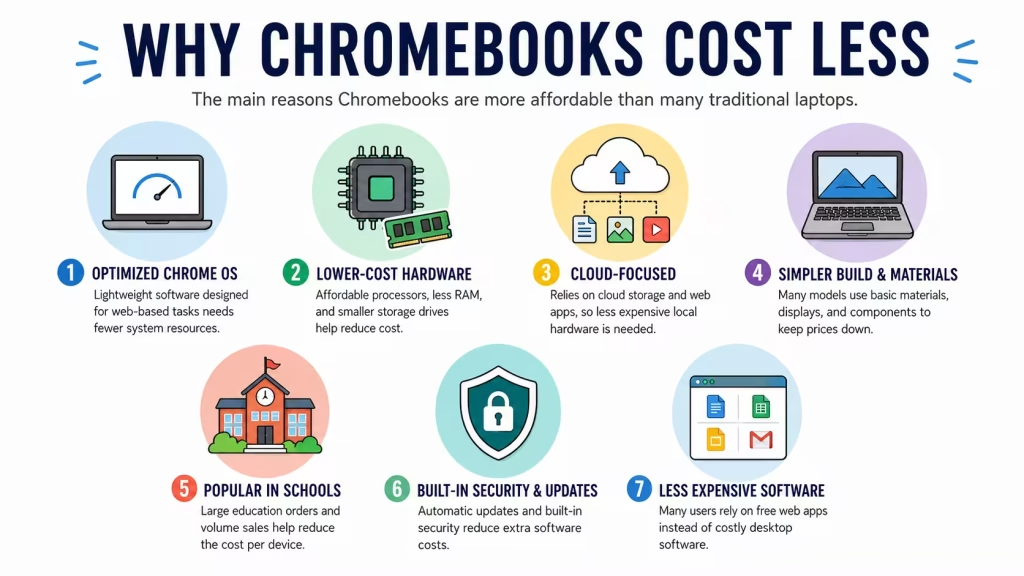
The lower price does not necessarily mean that every Chromebook is poorly made. Chromebooks cost less because ChromeOS is designed differently, requires fewer system resources, and focuses heavily on web-based applications. Manufacturers can therefore use simpler hardware and produce devices for students, families, and everyday users at lower prices.
However, there are also important limitations to understand before buying one. For a broader comparison, read our guide on whether you should get a Chromebook or a traditional laptop.
Here are the main reasons Chromebooks are so affordable – and when paying more for a traditional laptop may make sense.
1. ChromeOS requires less powerful hardware
One of the biggest reasons Chromebooks are inexpensive is ChromeOS.
ChromeOS is designed primarily for web browsing, cloud applications, streaming, email, and everyday productivity. It generally needs fewer hardware resources than a full Windows installation running multiple background services and traditional desktop programs.
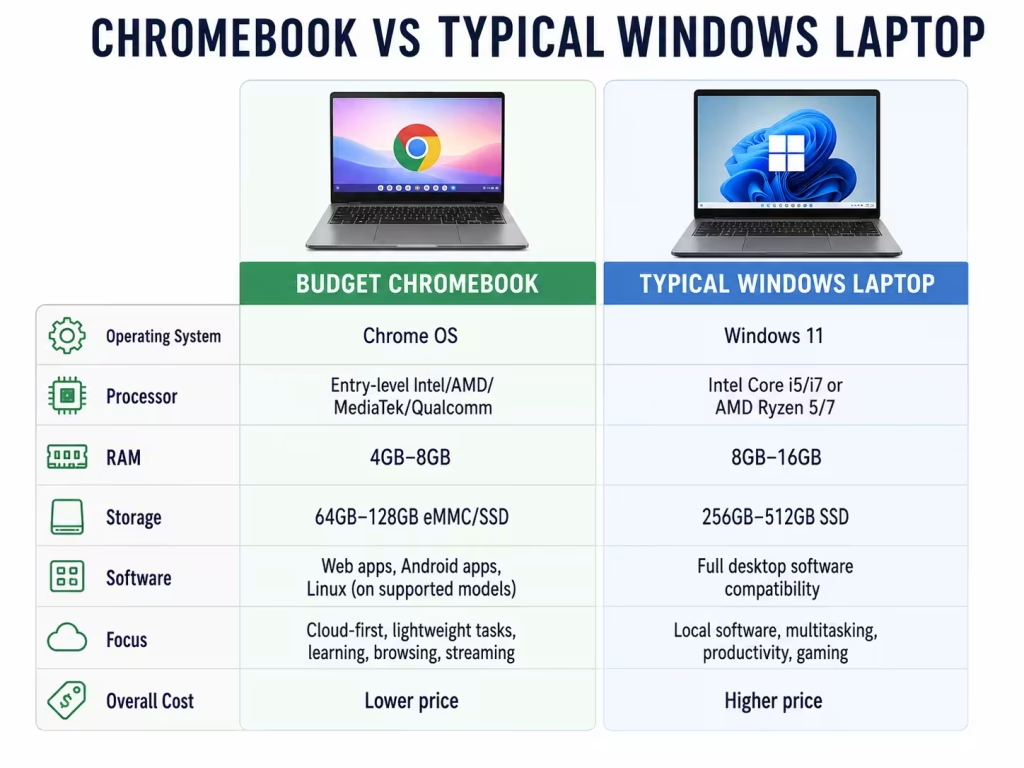
Because of this, a Chromebook can provide acceptable everyday performance with:
- A lower-cost processor
- Less RAM
- Smaller internal storage
- Simpler cooling
- Lower power consumption
This allows manufacturers to use affordable components without making the computer unusable for its intended tasks.
That does not mean every low-end Chromebook is fast. Models with very weak processors and only 4GB of RAM can still feel slow when many browser tabs or Android applications are open. For a better long-term experience, 8GB of RAM is preferable.
2. Many Chromebooks use inexpensive processors
Budget Chromebooks often use processors designed for basic computing rather than heavy workloads.
Depending on the model, you may find:
- Intel N-series processors
- Entry-level Intel Celeron or Pentium chips in older models
- MediaTek processors
- Qualcomm processors
- Lower-cost AMD processors
These chips are usually sufficient for browsing, Google Docs, schoolwork, video streaming, and video calls. Processor names can still be confusing, so our guide to which CPU type is best for a laptop explains the main differences. They cost less and consume less power than processors intended for gaming, video editing, engineering software, or demanding professional applications.
More expensive models—including Chromebook Plus devices—can include Intel Core or AMD Ryzen processors. Google’s Chromebook Plus requirements include at least 8GB of RAM, 128GB of storage, a Full HD IPS display, and eligible Intel Core or AMD Ryzen processors.
This means not all Chromebooks are extremely basic anymore. The category now ranges from inexpensive school devices to more capable premium models.
3. Chromebooks usually include less local storage
Traditional laptops often include 512GB or 1TB solid-state drives. Budget Chromebooks may provide only 32GB, 64GB, or 128GB of local storage.
Smaller drives lower the manufacturing cost.
ChromeOS is built around cloud storage and web applications, so users are encouraged to keep many files in services such as:
- Google Drive
- Microsoft OneDrive
- Dropbox
- Other online storage platforms
This approach works well when you have reliable internet access. However, limited local storage can be inconvenient for large photo collections, offline videos, games, or large application libraries.
Chromebooks can work offline for many common tasks, but they are still most useful when connected to the internet.
4. Manufacturers often use simpler materials and displays
Many affordable Chromebooks are built with plastic rather than aluminum or magnesium. They may also use simpler hinges, basic speakers, smaller batteries, and less expensive displays.
Common compromises on low-cost models include:
- Plastic construction
- Lower screen brightness
- Limited color accuracy
- Basic 720p webcams
- Non-backlit keyboards
- Fewer ports
- Lower-quality speakers
These choices help keep the price low, but they also explain why two Chromebooks with similar specifications can feel very different in person.
The cheapest model is not always the best value. A slightly more expensive Chromebook with a better screen, 8GB of RAM, and a stronger processor may remain useful for much longer.
5. ChromeOS relies heavily on free web applications
Chromebooks are designed to work with web-based services such as Google Docs, Sheets, Slides, Gmail, and Google Drive.
Many users can complete their daily work without purchasing traditional desktop software. Chromebooks can also use web versions of Microsoft Word, Excel, and PowerPoint, and Google lists Microsoft and Google productivity tools among the applications available to Chromebook users.
Many Chromebooks also support Android applications through the Google Play Store, although app availability and compatibility can vary by model and administrator settings.
This reduces the need to bundle expensive software with the computer and makes ChromeOS devices attractive to schools and families.
However, a Chromebook may not be suitable when you depend on a specific Windows or macOS program.
6. Schools buy Chromebooks in large quantities
Chromebooks became especially popular in schools because they are relatively inexpensive, easy to manage, and quick to set up.
Large education orders allow manufacturers to produce similar devices in high volumes. This can reduce the cost per unit through economies of scale.
School-focused Chromebooks also tend to use standardized designs and components. Manufacturers do not need to create a completely new chassis or internal layout for every model.
That helps explain why many entry-level Chromebooks look similar and share comparable specifications.
7. ChromeOS security and updates are built in
ChromeOS includes automatic updates and several built-in security features, reducing the need for additional antivirus software for most everyday users.
Google says Chromebooks receive up to 10 years of automatic updates, although the exact support date depends on the specific model. Buyers should always check the device’s Auto Update Expiration date before purchasing, especially when buying an older or refurbished Chromebook.
Long software support can make an affordable Chromebook a better value than its initial price suggests.
However, the update period is linked to when the Chromebook model was released—not necessarily when you purchased it. An older model sold as new may have fewer years of support remaining.
Are cheap Chromebooks worth buying?
A cheap Chromebook can be an excellent choice for:
- Web browsing
- Email and social media
- Google Docs and schoolwork
- Streaming movies and music
- Video calls
- Online shopping and banking
- Lightweight Android applications
They are particularly useful for students, children, older users, and anyone who mainly works in a browser. Students can also use our 2026 laptop specifications buying guide to decide how much RAM, storage, and processing power they need.
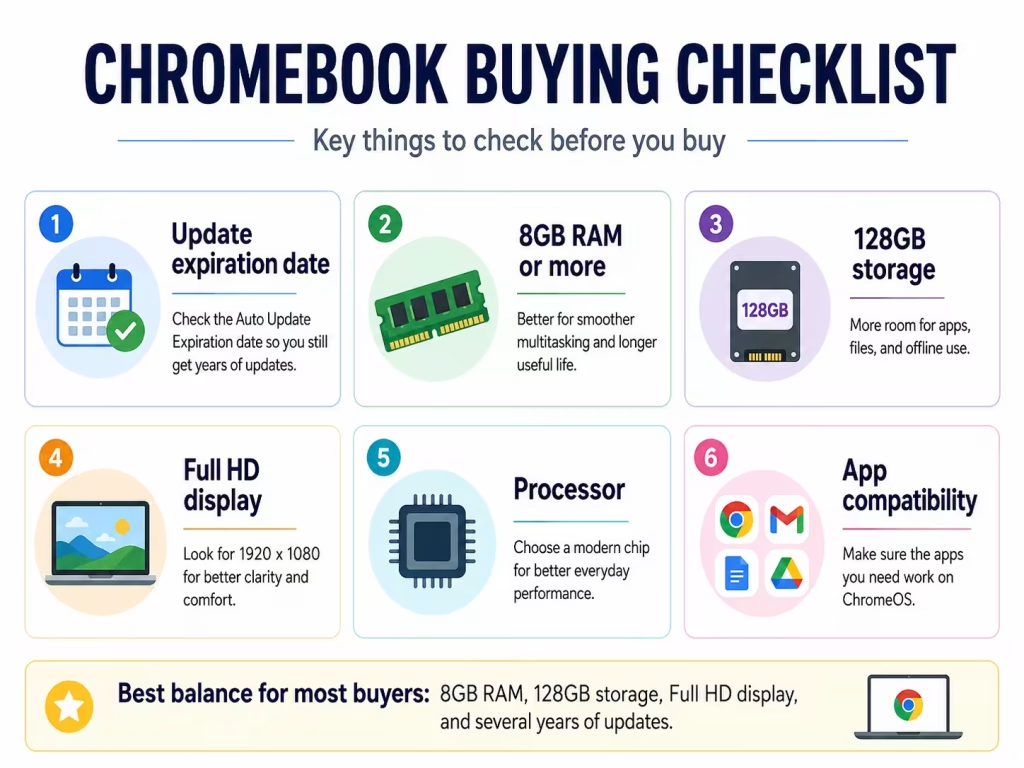
For most buyers, I would avoid the absolute cheapest model unless the intended use is very light. A Chromebook with 8GB of RAM, at least 128GB of storage, and a Full HD display will usually provide a much better experience.
You can also compare several current options in our guide to four Chromebooks compared.
When should you buy a Windows laptop instead?
A Windows laptop is usually the better choice when you need:
- Full desktop applications
- Adobe Creative Cloud software
- Advanced photo or video editing
- PC gaming
- Specialized business programs
- Engineering or CAD software
- Extensive offline storage
- Broad printer or accessory compatibility
Some Chromebooks can run Android applications, Linux development tools, and selected games, but compatibility is not as universal as it is on Windows. For a closer look at gaming limitations and options, read Can a Chromebook Be Used for Gaming?
Before buying, make a list of the programs you use and confirm that each one works on ChromeOS.
Why are some Chromebooks expensive?
Not every Chromebook is cheap.
Premium Chromebooks can include:
- Faster Intel Core or AMD Ryzen processors
- 8GB or 16GB of RAM
- Larger SSDs
- High-resolution touchscreens
- Convertible designs
- Backlit keyboards
- Better webcams
- Aluminum construction
- Longer battery life
Chromebook Plus models also have higher minimum hardware requirements than basic Chromebooks, including 8GB of RAM, 128GB of storage, and a Full HD IPS display.
These devices compete more directly with midrange Windows laptops and may cost considerably more than entry-level Chromebooks.
What should you check before buying a cheap Chromebook?
Before purchasing, verify:
- Automatic update expiration date: Make sure several years of support remain.
- RAM: Choose 8GB when possible.
- Storage: At least 128GB is preferable for apps and offline files.
- Display resolution: Full HD is much clearer than a basic HD panel.
- Processor: Avoid very old entry-level processors.
- Screen size and weight: Smaller models are easier to carry, while larger displays are better for extended work.
- Software compatibility: Confirm that your required applications work on ChromeOS.
You can browse Chromebook models in the LaptopStats laptop catalog and compare their specifications before choosing.
Conclusion
Chromebooks are cheap because ChromeOS requires fewer resources, many models use affordable processors and smaller storage drives, and manufacturers often use simpler designs and materials.
Their cloud-first approach also reduces the need for expensive hardware and traditional desktop software. Large purchases by schools and businesses further help manufacturers keep costs low.
For browsing, schoolwork, streaming, and basic productivity, a Chromebook can offer excellent value. But the lowest-priced model may come with compromises in performance, screen quality, storage, and build quality.
The best approach is to choose a Chromebook based on how you plan to use it—not simply because it has the lowest price.
In today’s technology-driven world, laptops have become essential tools for work, study, and entertainment. With a vast array of options available, selecting the right laptop can be overwhelming. This guide will walk you through the key considerations to help you choose the perfect laptop tailored to your specific needs.
Understanding Your Needs
Primary Use
The first step in choosing the right laptop is understanding its primary use. Different use cases require different specifications and features.
- Business/Work: For professionals, a reliable laptop with a robust build, good keyboard, and long battery life is essential. Business laptops often need security features like fingerprint sensors and TPM (Trusted Platform Module) chips.
- Gaming: Gaming laptops need powerful GPUs, high-refresh-rate displays, and efficient cooling systems. Features like customizable RGB lighting and advanced cooling solutions are also desirable.
- Multimedia/Entertainment: If you plan to use your laptop for watching movies, listening to music, or editing photos/videos, a high-quality display, good speakers, and sufficient storage are crucial.
- Travel/Portability: Travelers need lightweight, compact laptops with long battery life. Durability and a variety of connectivity options are also important.
- Educational/Student: Students need a balance of performance, portability, and battery life. Budget considerations are also significant, making affordable yet capable laptops ideal.
- Creative Professionals: Graphic designers, video editors, and other creative professionals require laptops with powerful CPUs, dedicated GPUs, high-resolution displays, and accurate color reproduction.
Budget Considerations
Budget is a critical factor when selecting a laptop. Generally, laptops can be categorized into three budget ranges:
- Low Budget (Under $500): Basic laptops suitable for web browsing, word processing, and light tasks. Chromebooks and entry-level Windows laptops fall into this category.
- Mid-Range Budget ($500-$1000): Offers better performance, build quality, and features. Suitable for students, office work, and moderate gaming.
- High-End Budget (Above $1000): Premium laptops with top-notch performance, build quality, and features. Ideal for gaming, professional work, and heavy multitasking.
Key Specifications to Consider
Processor (CPU)
The CPU is the brain of the laptop, influencing its overall performance.
- Intel Processors: Intel Core i3, i5, i7, and i9 processors cater to different performance needs. For basic tasks, an i3 suffices, while i5 and i7 are suitable for multitasking and professional work. The i9 is for high-end gaming and demanding applications.
- AMD Processors: AMD Ryzen 3, 5, 7, and 9 series offer competitive performance. Ryzen 5 and 7 are popular choices for their excellent multitasking and gaming capabilities.
Memory (RAM)
RAM impacts the laptop’s ability to handle multiple applications simultaneously.
- 4GB: Suitable for basic tasks like web browsing and word processing.
- 8GB: Ideal for most users, balancing performance and cost.
- 16GB: Great for multitasking, gaming, and professional work.
- 32GB and above: Necessary for heavy multitasking, professional video editing, and 3D rendering.
Storage
Storage affects the speed and capacity for data storage.
- HDD (Hard Disk Drive): Offers large storage capacities at lower prices but is slower and less durable than SSDs.
- SSD (Solid State Drive): Faster, more reliable, and energy-efficient. Commonly used for the operating system and frequently accessed files.
- Hybrid (SSHD): Combines SSD and HDD features, offering a balance of speed and capacity.
Graphics Card (GPU)
The GPU handles rendering images and videos.
- Integrated GPU: Suitable for everyday tasks and light gaming. Found in most budget and mid-range laptops.
- Dedicated GPU: Necessary for gaming, graphic design, and video editing. Popular options include NVIDIA GeForce and AMD Radeon series.
Display
The display is a crucial aspect of your laptop experience.
- Screen Size: Common sizes include 13″, 15″, and 17″. Smaller screens are more portable, while larger screens offer better visibility and comfort.
- Resolution: Higher resolutions (Full HD, 4K) provide clearer and sharper images. Essential for multimedia and professional use.
- Panel Type: IPS panels offer better color and viewing angles compared to TN panels. OLED panels provide superior contrast and color accuracy.
- Refresh Rate: Higher refresh rates (120Hz, 144Hz) are beneficial for gaming, providing smoother visuals.
Battery Life
Battery life is crucial, especially for those on the go. Look for laptops with at least 8 hours of battery life for all-day use. Battery capacity (measured in Wh) and power efficiency of components influence battery performance.
Portability and Build Quality
Portability depends on weight, dimensions, and build quality. Ultrabooks are lightweight and slim, ideal for travel. Build materials like aluminum and magnesium offer better durability compared to plastic.
Connectivity Options
Modern laptops require a variety of ports and connectivity options.
- USB Ports: USB-A and USB-C ports for peripherals.
- HDMI/DisplayPort: For connecting external monitors.
- Thunderbolt 3/4: High-speed data transfer and connectivity.
- SD Card Slot: Useful for photographers and videographers.
- Wireless Connectivity: Wi-Fi 6 and Bluetooth 5 offer better speed and range.
Operating System Choices
Windows
- Pros: Broad compatibility with software, gaming support, wide range of hardware options.
- Cons: Can be prone to malware, may require regular maintenance.
macOS
- Pros: Intuitive interface, seamless integration with Apple devices, strong performance in creative applications.
- Cons: Expensive, limited hardware options, less gaming support.
Linux
- Pros: Free and open-source, highly customizable, secure.
- Cons: Steeper learning curve, limited software compatibility.
Chrome OS
- Pros: Lightweight and fast, secure, great for web-based tasks and education.
- Cons: Limited offline capabilities, restricted to Chrome Web Store apps.
Additional Features and Considerations
Keyboard and Touchpad
A comfortable keyboard and precise touchpad are essential for productivity. Consider the following:
- Keyboard Layout: Full-sized keyboards with good key travel and feedback are preferable.
- Backlit Keyboard: Useful for low-light conditions.
- Touchpad: Look for large, responsive touchpads with multi-touch gesture support.
Audio Quality
Good audio quality enhances multimedia experiences and virtual meetings.
- Speakers: Look for laptops with front-facing speakers for better sound quality.
- Microphone: High-quality microphones are essential for clear communication.
- Audio Brands: Collaborations with brands like Dolby and Bang & Olufsen can indicate better audio quality.
Webcam and Camera Quality
Webcams are crucial for remote work and online learning. Look for:
- Resolution: HD (720p) or Full HD (1080p) webcams for clear video.
- Features: Privacy shutters, built-in microphones, and noise reduction are valuable.
Special Features
- Touchscreen Capabilities: Useful for creative work and navigation.
- Convertible or 2-in-1 Designs: Laptops that can be used as tablets offer versatility.
- Biometric Security: Fingerprint scanners and facial recognition add an extra layer of security.
Research and Reviews
Researching Brands and Models
Trusted brands offer reliability, customer support, and quality assurance. Popular laptop brands include Dell, HP, Lenovo, Apple, ASUS, and Acer. Research specific models and compare their features and performance.
Reading Reviews and Comparisons
Professional reviews provide detailed insights into a laptop’s performance, build quality, and features. User reviews offer real-world feedback on reliability and usability. Comparison sites can help you evaluate different models side by side.
Checking for Deals and Warranties
Timing your purchase can save money. Look for sales during back-to-school seasons, Black Friday, and other promotional periods. Check the warranty terms to ensure coverage for potential issues.
Conclusion
Choosing the perfect laptop requires careful consideration of your specific needs, budget, and preferences. By understanding the key specifications, operating systems, and additional features, you can make an informed decision that ensures your laptop meets your expectations and requirements.
Whether you’re a professional needing a powerful work machine, a student looking for a reliable and affordable laptop, or a gamer seeking high performance, the right laptop is out there. Take the time to research, compare options, and read reviews to find the laptop that best suits your needs.
Happy laptop shopping!
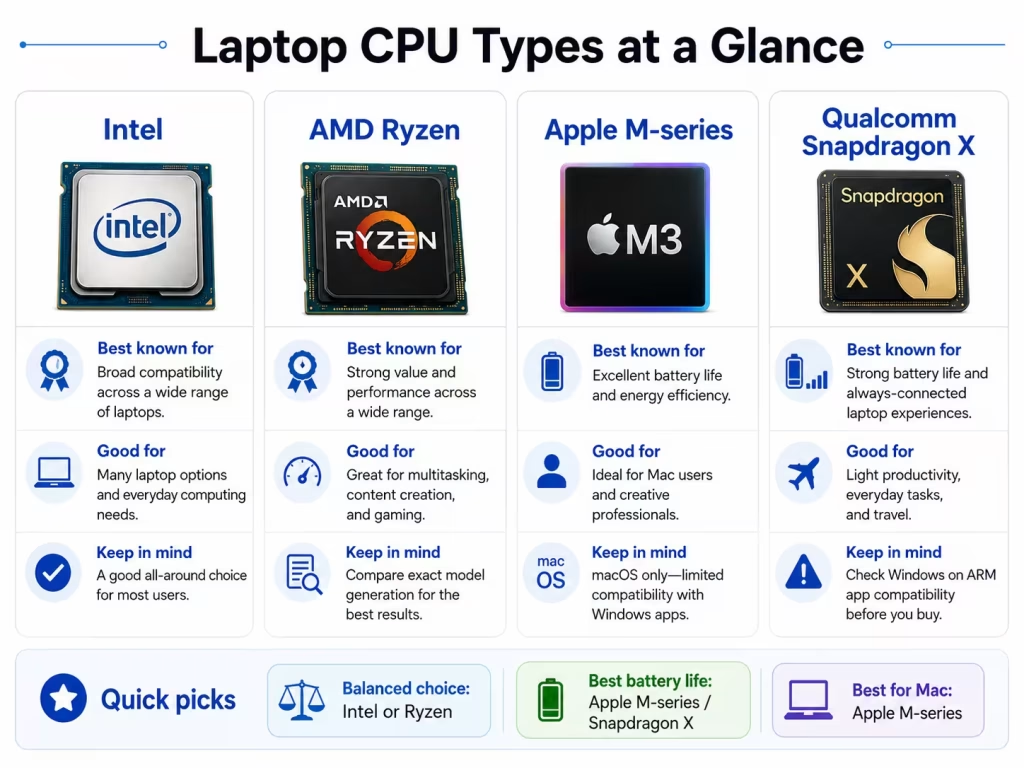
Choosing the best laptop CPU can be confusing because Intel, AMD, Apple, and Qualcomm each offer processors designed for different users. Intel and AMD power most Windows laptops, Apple uses its M-series chips in MacBooks, and Qualcomm Snapdragon X processors focus on portability, battery life, and AI-enabled Windows features.
The best choice depends less on the brand name and more on what you plan to do, which operating system you prefer, and how much you value performance, battery life, and software compatibility.
Quick answer: What is the best laptop CPU?
For most buyers:
- Everyday Windows use: Intel Core 5, Intel Core Ultra 5, or AMD Ryzen 5
- Long battery life: Apple M-series, Snapdragon X, Intel Core Ultra, or AMD Ryzen AI
- Gaming: Intel H/HX or AMD HS/HX processor with dedicated graphics
- Students: Intel Core 5, AMD Ryzen 5, Apple M-series, or Snapdragon X
- Creative work: Apple Pro/Max chips, Intel Core Ultra 7/9, or AMD Ryzen 7/9
- Basic browsing: Intel N-series, entry-level AMD, MediaTek, or similar low-power chips
The exact processor model matters more than the brand name alone.
What does a laptop CPU do?
The CPU, or central processing unit, handles the instructions needed to run the operating system, applications, browser tabs, and background tasks.
A stronger CPU can improve:
- Multitasking
- Application loading
- Web browsing with many tabs
- Spreadsheet calculations
- Photo and video editing
- Software development
- File compression
- Some areas of gaming performance
However, the CPU is only one part of the laptop. RAM, storage, graphics, cooling, and battery size also affect performance.
A laptop with a powerful processor but only 8GB of RAM may feel more limited than a balanced system with a slightly weaker CPU and 16GB of RAM.
Intel laptop processors
Intel offers processors for everything from inexpensive laptops to gaming and workstation systems.
Common Intel laptop families include:
- Intel N-series
- Intel Core 3, Core 5, and Core 7
- Intel Core Ultra 5, Ultra 7, and Ultra 9
- Higher-performance H and HX models
Intel is a good choice for:
- General productivity
- Business laptops
- Broad Windows software compatibility
- Gaming laptops
- Creator laptops
Intel Core Ultra processors also include integrated AI acceleration through an NPU in supported models.
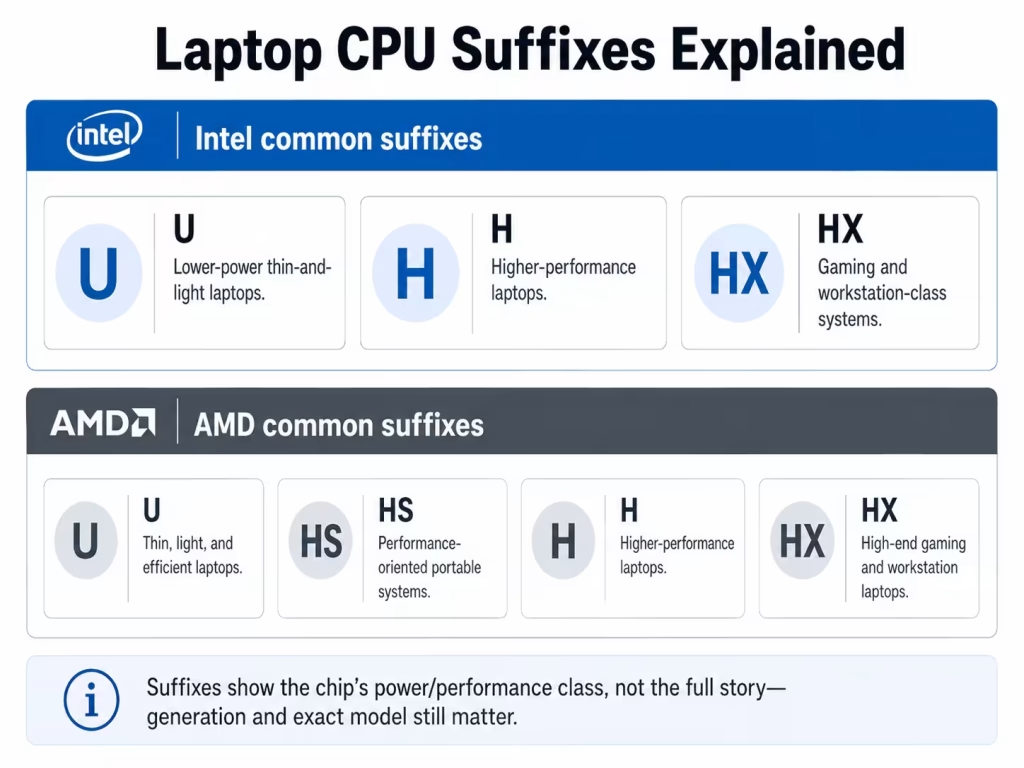
Understanding Intel suffixes
Letters at the end of the processor name usually indicate the intended power level:
- U: Thin, light, and efficient laptops
- H: Higher-performance laptops
- HX: Gaming and workstation-class systems
- V: Efficiency-focused premium mobile processors on some generations
An H or HX processor is usually faster under heavy workloads, but it also uses more power and requires stronger cooling.
AMD Ryzen laptop processors
AMD competes directly with Intel across budget, mainstream, gaming, and premium laptops.
Common AMD laptop families include:
- Ryzen 3, Ryzen 5, Ryzen 7, and Ryzen 9
- Ryzen AI processors
- U, HS, H, and HX performance classes
AMD is a good choice for:
- Strong overall performance
- Multitasking
- Good integrated graphics
- Gaming laptops
- Content creation
- Buyers looking for good value
Many Ryzen processors include capable Radeon integrated graphics. That can make some AMD laptops useful for light gaming even without a separate graphics card.
Understanding AMD suffixes
- U: Lower-power thin-and-light laptops
- HS: Performance-oriented portable systems
- H: Higher-performance laptops
- HX: High-end gaming and workstation laptops
Ryzen AI models also include an NPU for supported AI features, but the “AI” label alone should not determine your decision. The complete laptop still matters more.
Apple M-series processors
Modern MacBooks use Apple-designed M-series processors instead of Intel chips.
Apple combines the CPU, graphics, memory architecture, media engines, and AI acceleration into one system-on-a-chip.
Apple silicon is a good choice for:
- Mac users
- Long battery life
- Quiet operation
- Photo and video editing
- Music production
- Software development
- Users already invested in the Apple ecosystem
Which Apple chip level should you choose?
- Standard M-series chip: School, office work, browsing, and light creative tasks
- Pro chip: Heavier editing, development, and professional workloads
- Max chip: High-end video, 3D work, and graphics-heavy professional use
Most people do not need a Pro or Max processor. A standard M-series chip is already fast enough for everyday productivity.
The main limitation is that choosing Apple processor also means choosing macOS. Check that your required programs are available before switching from Windows.
Qualcomm Snapdragon laptop processors
Qualcomm Snapdragon processors use an ARM-based design and are becoming more common in Windows laptops.
Snapdragon laptops usually focus on:
- Long battery life
- Thin and light designs
- Quiet operation
- Fast wake and standby
- Built-in AI processing
Snapdragon is a good choice for:
- Students
- Travelers
- Office productivity
- Web-based work
- Video calls
- Users who prioritize battery life
The main concern: compatibility
Many popular Windows applications work well on Snapdragon systems, but some older or specialized programs may still have limitations.
Check compatibility carefully if you use:
- Older business software
- Engineering applications
- Certain games
- Anti-cheat systems
- Specialized drivers
- Printer or scanner utilities
- Virtualization tools
A Snapdragon laptop can be an excellent option, but only when your required software works properly.
Intel vs AMD: Which is better?
For most users, neither brand is automatically better.
Both Intel and AMD offer:
- Budget processors
- Efficient thin-laptop chips
- Gaming processors
- AI-capable models
- Strong integrated graphics in selected systems
The exact processor and laptop design matter more than the logo.
For example, an AMD Ryzen 5 in a well-cooled laptop may outperform an Intel Core 7 in a very thin model with strict power limits. The reverse can also happen.
Compare:
- Exact CPU model
- RAM
- Storage
- Battery size
- Graphics
- Display quality
- Price
Best laptop CPU by use case
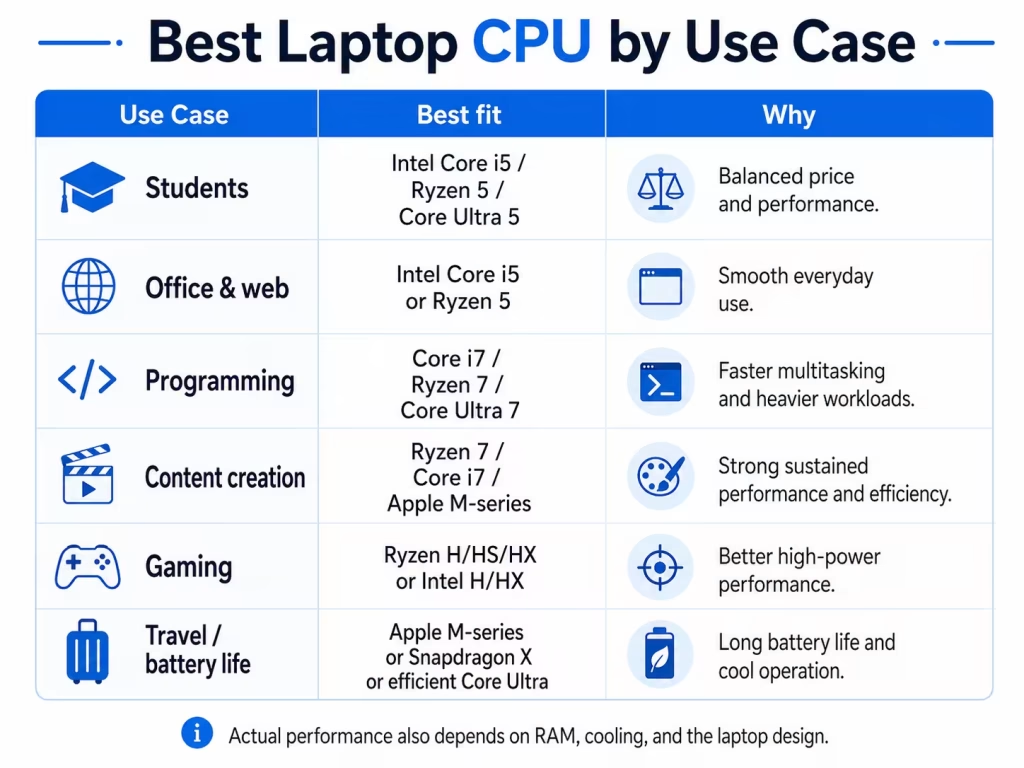
Everyday use
For browsing, email, office applications, streaming, and video calls, choose:
- Intel Core 5 or Core Ultra 5
- AMD Ryzen 5
- Apple standard M-series
- Qualcomm Snapdragon X
These provide enough performance for most users without paying for unnecessary high-end hardware.
Students
Most students should look for:
- Intel Core 5 or Core Ultra 5
- AMD Ryzen 5 or Ryzen AI 5
- Apple M-series
- Snapdragon X, when software compatibility is confirmed
Also aim for at least 8GB of RAM, though 16GB is better for long-term use.
Read our guide to the best laptop specifications for students for more detail.
Gaming
For gaming, look for:
- Intel H or HX processor
- AMD HS, H, or HX processor
- Dedicated NVIDIA or AMD graphics
- At least 16GB of RAM
- Strong cooling
The graphics card usually affects gaming performance more than moving from one high-end CPU tier to another.
Video editing and creative work
Good choices include:
- Intel Core Ultra 7 or 9
- AMD Ryzen 7 or 9
- Apple M-series Pro or Max
- High-end Snapdragon systems, when all apps and plugins are compatible
For creative work, also consider the GPU, RAM, storage speed, and display quality.
Battery life
Processors that often appear in efficient laptops include:
- Apple M-series
- Qualcomm Snapdragon X
- Intel Core Ultra
- AMD Ryzen AI and U-series processors
Battery life still depends on the whole laptop, including screen brightness, battery size, cooling, and background software.
What is an NPU, and do you need one?
An NPU is a neural processing unit designed to handle certain AI-related tasks efficiently.
It may assist with:
- Background blur
- Noise reduction
- Eye-contact correction
- Local AI features
- Image enhancement
- Supported productivity tools
Intel Core Ultra, AMD Ryzen AI, Apple M-series, and Snapdragon X processors include dedicated AI acceleration in current models.
An NPU can be useful, but it does not automatically make a laptop faster in every task.
Learn more in our guide to what an NPU is in a laptop.
Processors to approach carefully
Be cautious when a product listing does not show the exact CPU model.
Descriptions such as these are too vague:
- Intel processor
- AMD processor
- Quad-core CPU
- Up to 3.5 GHz
- Latest-generation processor
Always look for the full processor name.
Older Intel Celeron, Pentium, AMD A-series, and similar entry-level processors may work for basic browsing, but they can struggle with multitasking.
Modern Intel N-series and comparable budget chips can be suitable for light use, but they should not be confused with Core-class processors.
Do not judge a CPU only by GHz or tier name
Clock speed alone does not determine performance.
Two processors running at the same GHz can perform very differently because of differences in:
- Architecture
- Core design
- Cache
- Cooling
- Power limits
- Number of cores
- Software optimization
The same is true for names such as Core 7 or Ryzen 7. A newer Core 5 may outperform an older Core i7, and a modern Ryzen 5 may be better than an older Ryzen 7.
Always compare the full model number and generation.
How to choose the right laptop CPU
Before buying, ask:
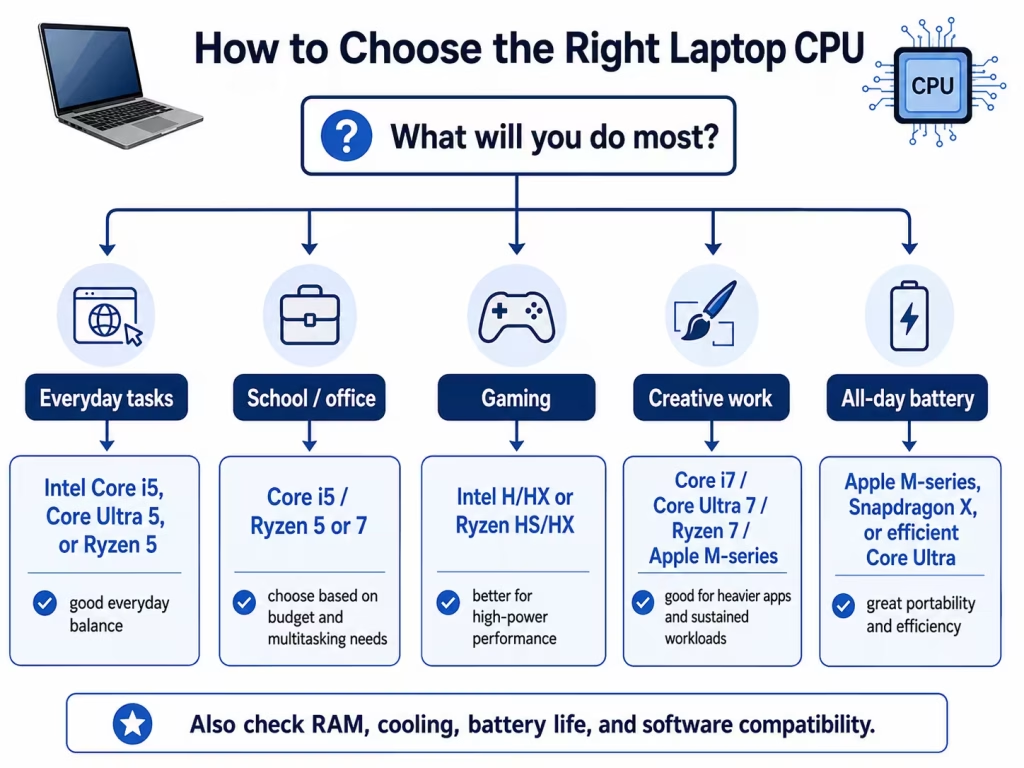
- Which operating system do I need?
- Which applications must run on the laptop?
- Do I prioritize battery life or maximum performance?
- Will I play games or edit video?
- Does the laptop have enough RAM and storage?
- Is the processor designed for efficiency or high performance?
Then compare complete laptops rather than CPUs in isolation.
You can browse laptops by processor in the LaptopStats catalog and compare models side by side.Or, if you already know which specifications matter most to you, use the Laptop Picker to narrow down your options.
Final recommendation
For most buyers, a modern midrange processor offers the best balance:
- Intel Core 5 or Core Ultra 5
- AMD Ryzen 5 or Ryzen AI 5
- Apple standard M-series
- Qualcomm Snapdragon X, when compatibility is confirmed
Choose Intel or AMD for the widest range of Windows laptops and software compatibility.
Choose Apple silicon for strong battery life, quiet performance, and macOS.
Choose Snapdragon when portability and battery life are priorities and your required Windows software is supported.
Most importantly, evaluate the entire laptop. A good processor cannot compensate for insufficient RAM, poor cooling, weak graphics, or a low-quality display.
Over time, your laptop may start to feel sluggish as you install more applications, accumulate files, and update software. Fortunately, there are several strategies you can implement to speed up your laptop’s performance without necessarily needing to upgrade hardware. Whether you’re using a Windows, macOS, or Linux laptop, these tips will help you optimize its speed and responsiveness.
Clean Up Disk Space
One of the most common reasons for a slow laptop is a full or nearly full hard drive. Follow these steps to free up disk space:
- Delete Unnecessary Files: Remove old downloads, temporary files, and unused applications.
- Use Disk Cleanup: On Windows, use the built-in Disk Cleanup tool to remove temporary files and system files that are no longer needed.
- Empty Trash: On macOS, empty the Trash to permanently delete files.
- Use External Storage: Move large files like videos and photos to an external hard drive or cloud storage.
Manage Startup Programs
Many applications automatically start when you boot up your laptop, which can slow down the startup process. To manage startup programs:
- On Windows: Open Task Manager (Ctrl + Shift + Esc), go to the “Startup” tab, and disable unnecessary startup programs.
- On macOS: Go to System Preferences > Users & Groups > Login Items, and remove or disable applications you don’t need at startup.
Update Your Operating System and Drivers
Keeping your operating system and drivers up to date can improve stability and performance:
- On Windows: Go to Settings > Update & Security > Windows Update, and install any available updates.
- On macOS: Go to System Preferences > Software Update, and install macOS updates.
- On Linux: Use your distribution’s package manager to update the system and drivers regularly.
Optimize Startup and Shutdown
Configure your laptop to optimize startup and shutdown processes:
- Disable Visual Effects: On Windows, go to Control Panel > System > Advanced System Settings > Performance Settings, and select “Adjust for best performance” or customize which visual effects to disable.
- On macOS: Go to System Preferences > Dock, and uncheck “Animate opening applications.”
Upgrade Your RAM
If your laptop supports it, upgrading RAM can significantly improve performance, especially if you regularly run memory-intensive applications like games or video editing software.
- Check Compatibility: Verify the type and maximum capacity of RAM your laptop supports.
- Purchase RAM: Purchase compatible RAM modules from reputable manufacturers.
- Install RAM: Follow manufacturer instructions to install RAM modules properly.
Manage Browser Tabs and Extensions
Web browsers can consume a lot of memory, especially if you have multiple tabs open or numerous extensions installed:
- Close Unused Tabs: Keep only the tabs you need open.
- Disable or Remove Extensions: Evaluate which extensions are essential and disable or remove unnecessary ones.
Run Disk Defragmentation (Windows) or Optimization (macOS)
- On Windows: Use the built-in Disk Defragmenter tool to optimize the organization of data on your hard drive.
- On macOS: macOS automatically optimizes SSDs, but for HDDs, you can use third-party tools like Disk Utility to defragment.
Use Lightweight Antivirus Software
Some antivirus programs can consume significant resources. Consider using lightweight antivirus software that provides adequate protection without slowing down your laptop.
Adjust Power Settings
Optimize your laptop’s power settings to balance performance and battery life:
- On Windows: Go to Control Panel > Power Options, and choose a power plan that suits your needs, such as “Balanced” or “High Performance.”
- On macOS: Go to System Preferences > Energy Saver, and adjust settings to optimize performance based on your usage.
Restart Your Laptop Regularly
Restarting your laptop can clear memory and reset processes, improving overall performance over time. Aim to restart your laptop at least once a week.
Conclusion
By implementing these tips, you can significantly improve your laptop’s speed and responsiveness without necessarily needing to invest in new hardware.
Regular maintenance, optimization of startup programs, and managing disk space are key to keeping your laptop running smoothly.
Experiment with these strategies to find the combination that works best for your specific laptop and usage habits, ensuring a faster and more efficient computing experience.